Shopify Chatbot for Real-Time Order Status, Product Information, and Knowledge-Based Q&A

Neha
Last updated on August 25, 2026
A Shopify chatbot can answer policies, product questions, and order-status requests accurately only when each question routes to the right source.
A good Shopify agent should know when it needs more context before it can act. It can ask a follow-up question, check the customer details against Shopify, and then carry out the right lookup or action. That keeps the conversation natural while helping the agent avoid guesses, incorrect matches, and unnecessary back-and-forth.
A storefront bubble can look fully live and still fail an order-status request. A shopper asks where their order is, but the agent repeats the shipping policy because that is the only relevant source it can access.
The shopper needs tracking details for a specific order, and static training data cannot provide them.
The fix is not a smarter prompt. It is wiring each kind of question to the data that can actually answer it, and a Shopify store has three of those paths. If the widget is not on your theme yet, run the full Shopify setup first and come back.
YourGPT is a no-code AI platform for customer service, sales, and operational automation. You connect your business data, policies, processes, and rules, and the agent answers questions, resolves requests, and runs multi-step actions across connected systems and APIs. On a Shopify store, those connections are the three paths below.
When a Shopify chatbot gets an answer wrong, one of these three paths was often asked to handle a question it was never wired for.
| Answer path | What shoppers ask | Where the answer comes from | What you wire |
|---|---|---|---|
| Knowledge-based Q&A | Shipping rules, returns, sizing, store policies | Pages and files you add under Training | Training sources, kept current |
| Live product information | Price, variants, stock, product details | Your Shopify catalog, refreshed by product webhooks | Shopify connect plus Webhooks & Synchronization |
| Live order status | Where a specific order is right now | Shopify Admin, through the Shopify template in AI Studio | SHOPIFY_TOKEN, SHOPIFY_ENDPOINT, shopper verification |
A Shopify AI agent depends on the right source for each request. Policies and FAQs use the content you train, product questions use the synced Shopify catalog, and order-status requests use a live Shopify Admin API lookup.
Training handles information you provide, such as policies and FAQs. Live Shopify data, such as stock or order status, is handled through the Shopify connection set up for that request.
For order lookups, collect the shopper’s email and order ID before returning any details. That simple check helps make sure the request matches the right customer and order.
The knowledge path is the one every store already has material for, so start there.
Open Training in YourGPT and add the support content you want the agent to use. You can add individual pages with Add New Link, crawl a section of your site, paste common questions and answers under FAQs & Text, or upload files such as PDFs and CSVs. The training sources guide explains the available options.
Train these first:
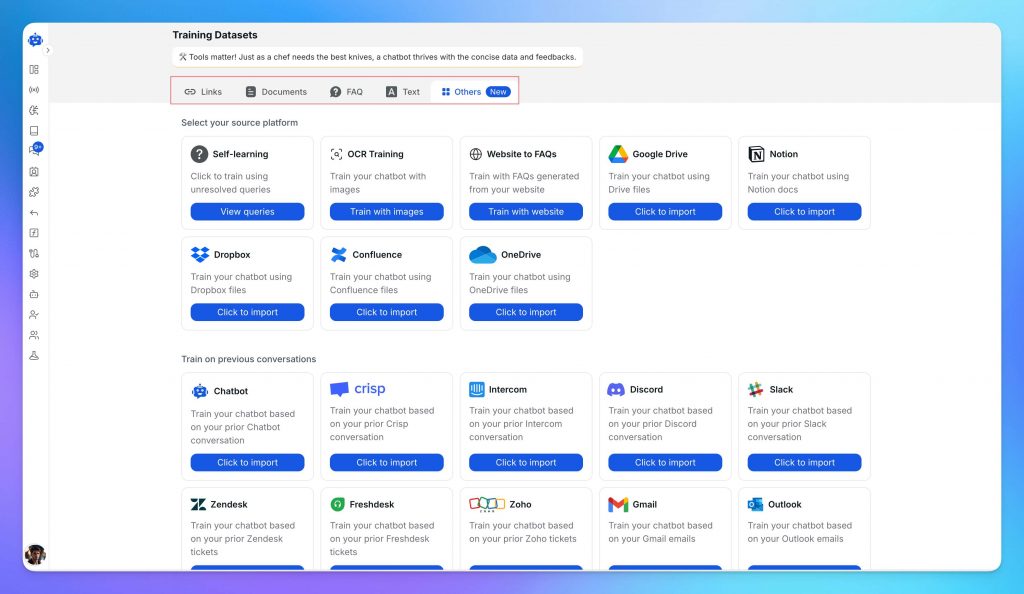
Keep the source list clean. An old blog post announcing a shipping deal that ended last year will leak into answers next to the current policy page. If a page contradicts the policy, untrain it.
Knowledge-based answers are only as current as the content behind them. For pages that change, use Advanced Link Training to set a Retraining Period. For pages that rarely change, you can use Skip Retraining. Product webhooks only update Shopify catalog data, so changes to shipping, returns, or other policies still need to be reflected in the sources you trained.
Policy questions now answer from the pages you trained. Product facts change too often for static sources, which is what the sync path solves.
Prices and stock levels can change throughout the day, so static training quickly becomes stale. The sync path keeps catalog answers current without repeated manual training.
In the YourGPT dashboard, open the Shopify integration and connect the store with its URL. The connection flow checks that the widget is installed on the theme. The Shopify integration page gives the overview. The connector has no extra fee and works on every YourGPT plan.
Then turn on real-time sync. The real-time sync help article walks the same screens:
Keep the webhook URL private. Anyone with it could send data into your training set.
Two controls on the Products tab are worth turning on:
Sync has two limits. Product pages must be public, because YourGPT trains on the live page. Customer sync carries name, email, and phone only, with no order history, which is exactly why order status needs its own path.
Product webhooks keep catalog answers current. Price and stock changes arrive on the product update event.

Catalog sync keeps product information current. Once that connection is in place, YourGPT can also use the catalog during the conversation instead of only answering product questions from it.
For example, a shopper might ask:
“Do you have the blue jacket in large? Add it if you do.”
The agent can search your Shopify catalog, find the exact product and variant the shopper wants, check whether it is in stock, show the product card in chat, and add the selected item to the cart. The Shopify Copilot Actions guide explains each action and how it works.
Because requests like this usually involve several steps, they work best with Agent Mode. The agent can move through the request in order, from finding the product and checking the variant to confirming stock and adding the item to the cart.
You can set this up from the Shopify integration in YourGPT under Functions and AI Copilot Actions. The Shopify storefront shopping guide explains how these actions fit into the storefront shopping experience.
That covers product discovery and cart actions. Existing orders are handled differently because their status is not part of the storefront catalog. To answer questions such as “Where is my order?”, the agent needs access to Shopify Admin, which is the next setup.
Customer sync does not include order history, and training data cannot tell you where a specific order is. For live order status, connect AI Studio to Shopify’s Admin API using the Shopify template.
AI Studio is YourGPT’s workflow builder. Import Connect Your Shopify Store with an AI Chatbot through File → Import. The Shopify Chatbot guide in the Studio docs covers the same template. Its scenarios:
| Scenario | When it runs | What the shopper gets |
|---|---|---|
| Search Product | They are browsing for something | Matching products from the store |
| Product Details | They ask about price, variants, or availability | Those facts for a specific product |
| Add to Cart | They picked an item | A link that adds it to their cart |
| View Cart | They want to review the cart | A link to the current cart |
| Order Status | They ask where an order is | The order’s state and tracking from Shopify Admin |
| Return Order | They want to send something back | What can be returned, plus your return policy from training |
Add to Cart and View Cart send links, so they need no extra scopes. Order Status and Return Order read Shopify Admin, which requires a token. The flow calls Shopify’s API from the chat, a pattern explained in this guide to API calling in a real-time chatbot.
The template covers the fixed scenarios. If a request needs the flow to reason on its own, the AI group in the toolbox has the Autonomous Agent node: a goal-driven agent that plans steps, calls your APIs and code, and routes the conversation without a fixed script.
Shopify issues this token, not YourGPT. You need it only for the template’s order and return scenarios, and it lives in AI Studio as a config variable, never in the theme.
The Shopify auth token help article walks the same steps. If Develop apps is missing from that menu, follow Shopify’s current custom-app path. Either way you end up with an Admin API access token and your store domain.
Store both as config variables in AI Studio:
SHOPIFY_TOKEN: the Admin API access tokenSHOPIFY_ENDPOINT: your your-store.myshopify.com domainThe token can read order data. Keep it in AI Studio config variables. Never paste it into a theme file, a screenshot, or a ticket. If it leaks, generate a new one in Shopify.
With both config variables stored, open Emulator in AI Studio and ask for an order the way a shopper would. Give a real email and a real order number from Shopify admin. The reply should match what admin shows for that order: its current state and tracking details.
A sample order ID is not a pass. When the Emulator matches the live shop, click Publish. Drafts stay in the Emulator until you do. The publish help article covers that click.
Order status is an Admin API lookup, not a trained answer. The token reads only the scopes you grant, and the flow only looks up an order after the shopper verifies.
Some conversations should move to a person. A shopper may ask for human support directly, or the agent may reach a point where it should stop and hand the chat over.
From the widget, shoppers can request a person themselves. In AI Studio, you can use Escalate to Human when a flow reaches a case that needs human ownership, such as a damaged-item claim, a refund exception, or another request the agent should not resolve on its own.
The handoff keeps the conversation context intact, so your team can see what the shopper asked and what has already been collected. The Studio actions documentation covers the setup.
Not every complex chat needs to be handed over to a person. In many cases, the agent only needs someone on your team to confirm a decision before it can continue.
That is where Check with Team Functions fits. The agent can ask your team for a quick confirmation, then continue the same conversation once it has an answer. It is just like how support reps would normally check with a senior colleague before replying, without turning the whole conversation into a live handoff.
This keeps human support available for the conversations that genuinely need it, while the agent continues handling the rest. The same distinction is useful when thinking about live chat versus AI chatbots.
Start with real customer questions rather than made-up test prompts. Pull a few recent tickets, emails, or chat conversations that cover:
Test them as customers actually wrote them. Keep the misspellings, vague wording, and missing details. If someone wrote “where’s my order?” without an order number, that is exactly the kind of message the agent needs to handle correctly.
For the storefront, open your Shopify theme Preview and test the widget on the home page, a product page, the cart, and any other page where shoppers are likely to use it.
You can open the agent from the YourGPT Integration page. Both open the same public agent link, which you can test in a private browser window for a fresh session.
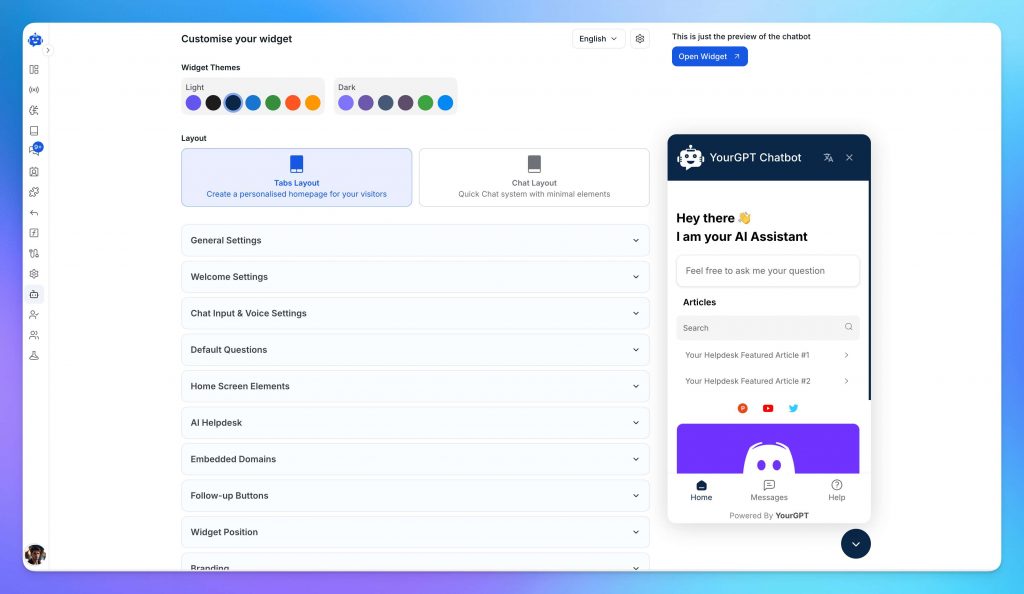
For anything built in AI Studio, use the Emulator before publishing. Test product flows with an actual item from your catalog and order flows with an order you can verify in Shopify Admin.
Compare each reply with the system it should be reading from:
Watch closely for answers that sound reasonable but have no source behind them. Discount codes, restock dates, tracking numbers, delivery dates, and policy exceptions are especially important to verify rather than guess.
If an answer is wrong, check the source it used. Policy issues usually come from outdated, conflicting or incorrect training content, stock errors usually point to product sync, and order-status problems usually mean the Shopify order lookup needs attention.
After launch, keep reviewing real conversations against the live source. Repeated mistakes often reveal gaps that directly affect customer satisfaction. Fix the source or workflow causing the bad answer rather than simply rewriting the response.
A widget can be visible, styled correctly, and answering basic questions while important parts of the setup are still disconnected.
SHOPIFY_TOKEN in AI Studio.Once the Shopify agent is working on your storefront, you can connect other supported channels as well. If WhatsApp is already an important support channel for your store, the Shopify WhatsApp chatbot setup covers that workflow.
Yes. A Shopify chatbot can look up the customer’s actual order and return current information such as fulfillment status and tracking details. The agent should first collect enough information to identify the correct order, such as the customer’s email address and order ID, then retrieve the matching record from Shopify through the Admin API.
Yes. The same agent can handle all three as long as each request connects to the right source. It can use Training for policies and FAQs, Shopify catalog data for product questions, and the Shopify Admin API for customer-specific order lookups.
The agent asks for the information it needs to identify the order, such as the customer’s email address and order ID. It then checks those details against Shopify before returning the order information. If a customer simply asks, “Where is my order?”, the agent should ask for the missing details rather than guess which order they mean.
Yes. Once you connect the Shopify catalog, the agent can use your store data to answer product-related questions, including pricing, available variants, and stock information. This is more reliable than adding product details manually to Training because the catalog can stay synchronized as your store changes.
Product webhooks can keep the connected catalog synchronized when you create or update products. If a price, variant, or stock level changes in Shopify, the agent can use the updated product information instead of continuing to answer from an older catalog snapshot.
No. The Admin API is mainly required when the agent needs to retrieve or act on customer-specific Shopify data, such as an order. Policy answers come from Training, while product information can come from the connected Shopify catalog and synchronization setup.
It should ask a relevant follow-up question. A good agent does not force every message into a predefined answer or make assumptions about what the customer means. It gathers the missing information, uses it to identify the correct data or action, and then continues the conversation.
The agent should not invent an answer. It can ask for more context, explain that it could not complete the request, or hand the conversation to a support agent. Escalate to Human is especially useful when the request falls outside the available knowledge, requires manual review, or cannot be completed safely through automation.
Yes. You can add Escalate to Human so the conversation moves to your support team when needed. The agent can pass along the conversation context, which helps the human understand what the customer has already asked and what the AI has already tried.
Yes. You can connect the agent to supported channels such as WhatsApp while keeping the same underlying business knowledge and Shopify workflows. This allows customers to ask product, policy, or order-related questions from different channels without creating a separate support setup for each one.
Not for normal catalog changes when Shopify synchronization and product webhooks are enabled. Product updates are automatically synced into the connected catalog. Content that lives in Training, such as a shipping or returns policy, should still be updated whenever the underlying policy changes.
No. Customer data and order data serve different purposes. Customer synchronization can provide customer details such as name, email, and phone number, but checking a specific order still requires the agent to retrieve that order from Shopify.
Not through a standard storefront theme installation. Shopify checkout does not load regular theme scripts in the same way as storefront pages, so the chat widget is available on the storefront rather than inside the standard checkout flow.
There is no separate fee for the Shopify connector itself. YourGPT and Shopify are separate products with their own subscriptions, while the Shopify integration is included as part of the YourGPT platform. The Professional plan is recommended because it includes the capabilities most brands need, and you can always upgrade to the Advanced plan based on your needs.
You now have one agent answering all three kinds of Shopify questions in a single chat. Policy answers come from your trained sources, product facts from the synced catalog, and order status from a live Admin API lookup after the shopper verifies. Every answer comes from the system that actually holds it.
Wire them in that order: train the knowledge base, sync the catalog, then add order status in AI Studio once you verify the flow with a real order in the Emulator. If you are still choosing the tool that should run this, the Shopify AI support agent checklist walks the points worth checking first. Escalate to Human is the last piece, catching the chats no answer path can solve and handing them to a person with the full conversation attached.
After launch, read the first real conversations and fix the source behind every wrong answer, not the wording of the reply. YourGPT’s self-learning surfaces knowledge gaps from the conversations the agent could not resolve, so each fix improves the next answer.
Shoppers get policy, product, and order answers without leaving the store.
Real estate growth starts with meaningful conversations. Every buyer, renter, or investor who visits your website is looking for quick answers about properties, pricing, availability, locations, viewing options, or the next step in their journey. YourGPT helps real estate teams turn those moments of interest into qualified leads. With an AI chatbot trained on your […]

TL;DR Instagram buyers who ask “price?” in a comment expect an answer within minutes. Manual replies usually arrive too late to make the sale. YourGPT AI can connect to your professional account in minutes, reply publicly to selected comments, send detailed answers by DM, and handle follow-up questions using your knowledge base. Meta allows one […]
Connect your website AI agent to a CRM with YourGPT. Capture lead details, map contact fields and verify the record your sales team will use.

Use YourGPT to help Black Friday shoppers choose products, check orders and understand returns. Prepare your answers and team before the sale.
Add in-app chat support to your SaaS or mobile app. Place it on the screens where users stall, pass who they are, and hand hard cases to your team.
Group new-account tickets by onboarding stage, train an AI agent on your docs, and place it in the product where new users get stuck.