AI Agent Integration: Connect Your Website Agent to CRM

Shreya
Last updated on October 24, 2026
YourGPT connects website conversations to your CRM so sales can follow up with a visitor’s contact details, requirements and requested next step in one record. Capture those details, map them to the right CRM fields and configure the handoff. Before going live, test a complete inquiry from your website and confirm that the CRM contact contains the information your team needs.
Suppose a visitor asks your website agent for a demo for a team of 20. They explain which CRM they use, what they want to improve and when they would like to speak. If the new CRM contact contains only their email address, your salesperson has to ask for that context again.
The visitor has already started the conversation; your sales team needs enough detail to continue it. For a growth or sales operations team, the setup begins by deciding which answers matter for that first reply. Choose those fields and the right moment to ask for them before you configure the connection.
AI agent CRM integration sends information from a website conversation to the customer records your team uses for follow-up. For website lead capture, the useful result is a contact with enough context for a salesperson to take the next action.
For example, a visitor might ask about annual pricing and request a demo. Decide what the salesperson should see before replying:
Choose the fields your team will use and map each one explicitly. Asking a question in the conversation does not, by itself, add that answer to the CRM request.

The integration can send fields to the CRM’s API, the interface other tools use to exchange data with it, or send them to a configured automation workflow. In the second route, the agent sends data to a webhook, a receiving URL for the automation workflow. You then configure that workflow to create or update the CRM contact.
This is the practical goal of chatbot CRM integration: put a usable inquiry in the CRM your team uses for follow-up. Choose a connection your team can maintain, then decide when the agent should collect the details.
Use a pre-chat form for a short contact request at the start of a visit. If the questions are better asked after the visitor has explained what they need, use a Form or Capture Entity in AI Studio at that point. Choose the timing before you configure the fields.
Begin with the fields that make a lead useful to your team. Configure contact capture before connecting the CRM so the outbound request has the values it needs.
Saving a contact in YourGPT does not by itself create a CRM record. The outbound integration handles that second save.
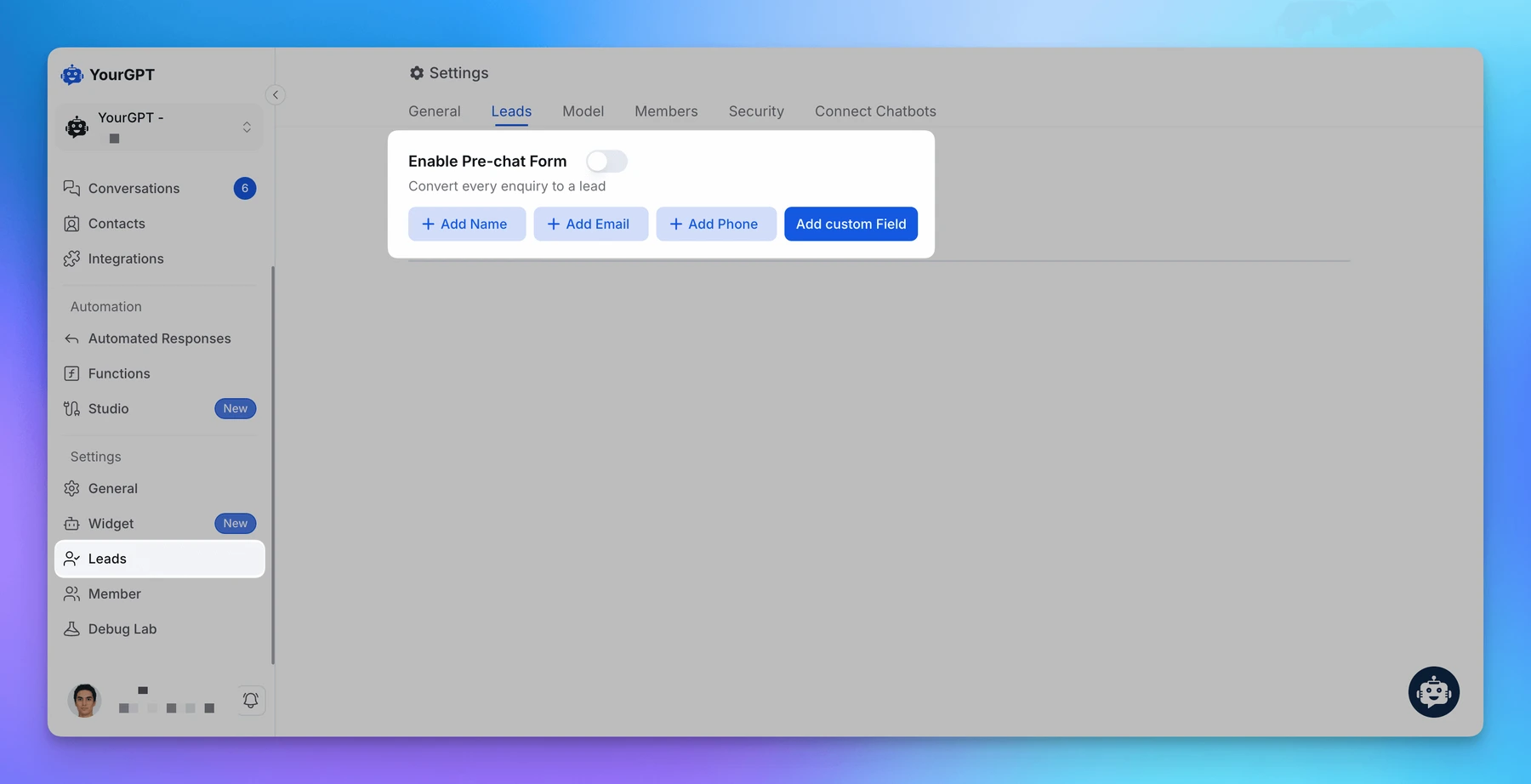
Use the following steps when you collect details inside the conversation. If you chose a pre-chat form, its submission already creates the contact; continue to the new-contact event in the next section.
A form response only reaches Create Contact when it is mapped to a workflow variable. In the form settings, use Store Into to assign each captured value to the variable that the contact action will use.
| Captured value | Example Store Into variable | Create Contact use |
|---|---|---|
| Visitor email | FLOW.visitor_email | Contact email |
| Visitor name | FLOW.visitor_name | Contact name |
If the capture ran but the contact is incomplete, check the field mapping. A response can be collected without being stored in the variable the contact action uses. For a Form, check Store Into; for Capture Entity, check the selected entity and its variable. Save and run the capture again.
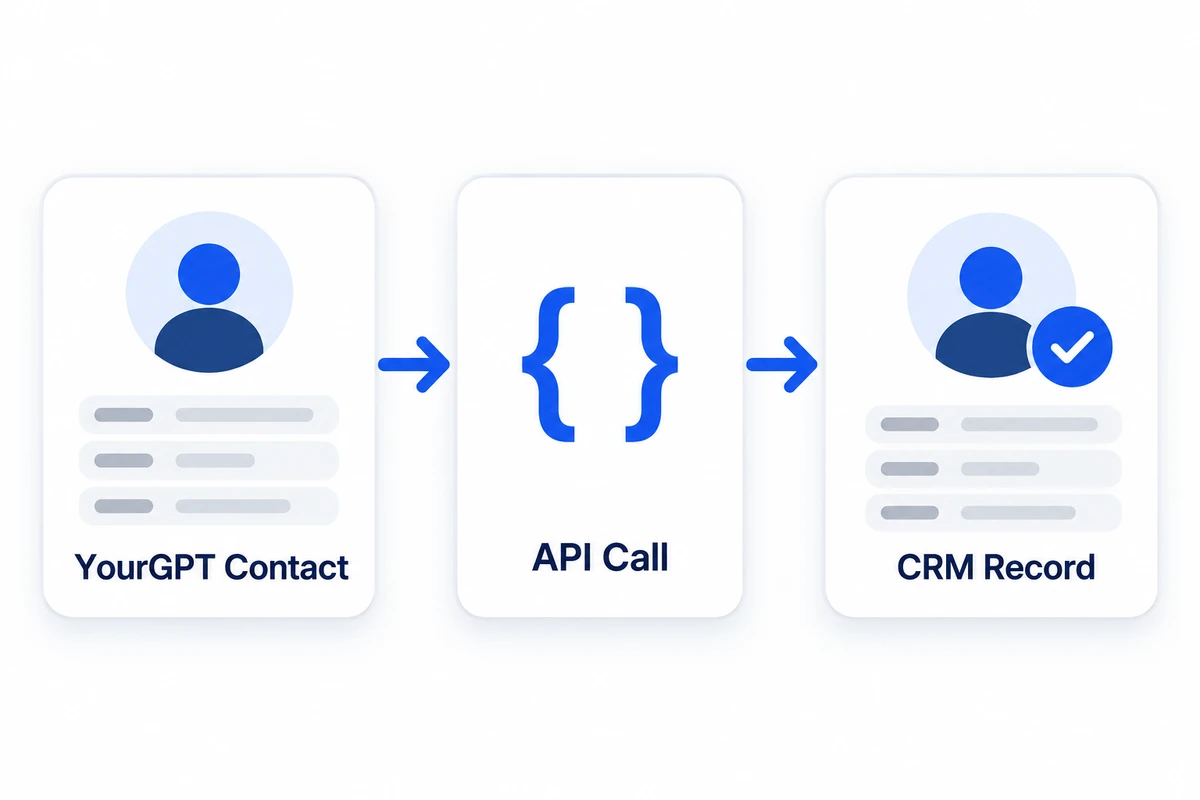
The Contact created event fires whenever YourGPT saves a new contact, whether through the pre-chat form or a configured conversational capture path. Use it to start the CRM request.
The Contact created event is scoped to new records: it won’t fire just because a contact already exists in YourGPT, and it isn’t tied to any single action. Use a fresh test contact for the first trigger test so you can distinguish event setup from update behavior.
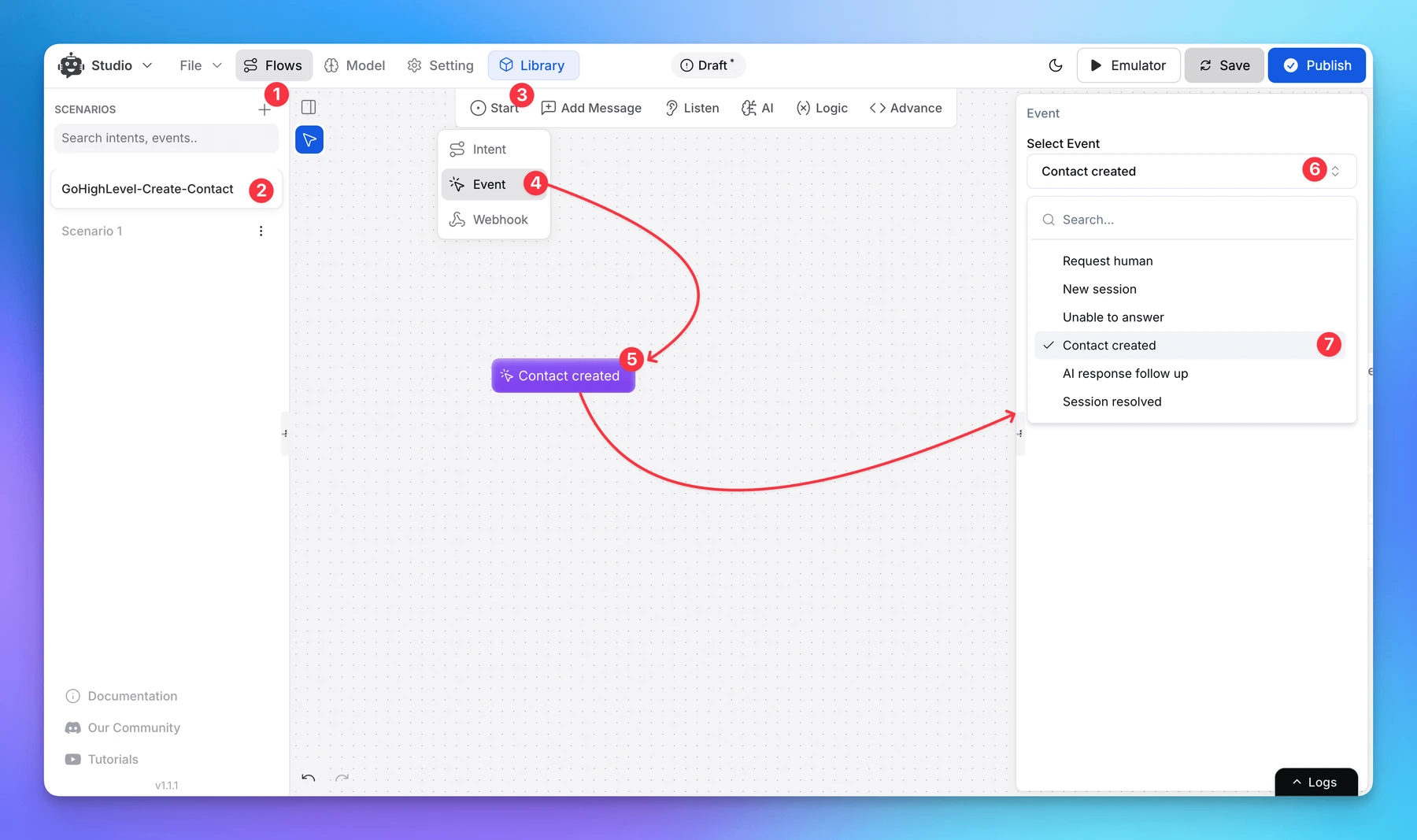
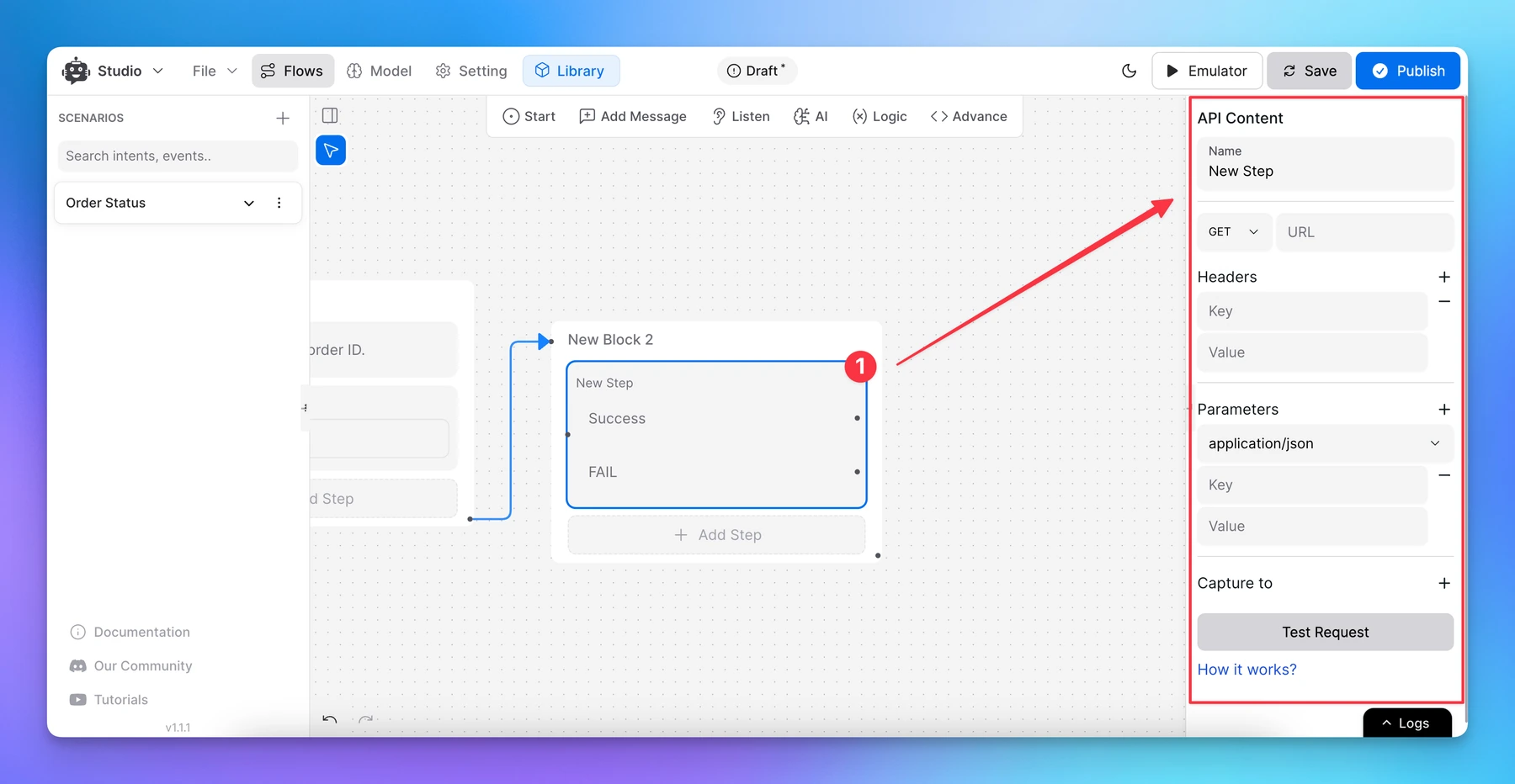
Sending the newly created contact to your CRM starts in the API Call node. That node exposes the controls you need: method and URL, Headers, Parameters, Test Request, Capture to, and success and failure branches. You can work with these controls in the API Calling editor.
Start with the CRM’s API reference for the create or update contact operation, and copy the exact method, URL, and authentication requirements. Do not infer a standard convention when your CRM documents a specific pattern.
When you build the request body, keep the CRM’s JSON schema open. Property names defined by the destination belong on the left side of each mapping, and YourGPT context variables are the values on the right.
Use {{CONTACT.email}} and {{CONTACT.name}} as source values in the API Call body. For other captured answers, check the available contact variables under Model > Variables and use the actual variable holding the saved value.
| YourGPT source | Example destination key | What to confirm |
|---|---|---|
{{CONTACT.email}} | EmailAddress or email | Use the destination’s documented identifier and create-or-update rule. |
{{CONTACT.name}} | FullName or name | Send the name when the destination accepts it and the value is available. |
Replace the example property names with the exact keys accepted by your CRM. For example:
Leave existing CRM owner and stage properties out of the payload unless your integration has a documented rule that changes them. If the source value for a field is unavailable, omit that field from the JSON rather than sending an empty value, so you do not clear a known value in the destination.
A standalone test may not have the live contact event available. Supply test values wherever the request depends on dynamic data, following the dynamic-parameter testing steps. If you temporarily use literal values to test the endpoint, restore the contact-variable mapping before testing the event-driven request.
Use the Capture to control to store a chosen path from the JSON response into a workflow variable. The path must match the response structure the endpoint returns, so inspect the actual response before entering it.
Store only the response values the workflow needs, such as the returned record identifier or result. You can compare those values with the execution log during the website test.
After your request tests, save and publish the workflow before accepting live inquiries. Only publish once the endpoint credentials, URL, and field mapping are complete. Then send a realistic sales inquiry through the website agent using test details and a dedicated test email.
For the first test submission, run this sequence; each step gives you the next checkpoint.
An HTTP success response, shown by a 2xx status, may confirm a saved record when it comes directly from the CRM and includes that record. The same status from an intermediate automation receiver may only acknowledge receipt, so check the actual CRM contact.
| Scenario | What to verify | Fix if it fails |
|---|---|---|
| First contact | New CRM record contains the mapped contact values | Confirm a source contact exists, every value maps, and destination property keys are accepted |
| Existing CRM contact | The receiving action handles the existing identifier according to its matching rule | Check the destination’s create or update behavior before resending; use a deliberate update path for later changes to an existing YourGPT contact |
| Missing required data | The capture asks for the required identifier before the outbound request | Check required fields and the condition that allows the CRM call to proceed |
| Failed request | The configured failure path handles the error without reporting a saved CRM contact | Inspect execution details, correct the endpoint, authorization or schema issue, and retest |
Resend a test API request to check how the receiving endpoint handles repeated delivery. Configure its matching rule to avoid creating another record for the same intended contact. After the first record is confirmed, expand the integration to update existing records, add notes, or route leads into sales workflows.
YourGPT can connect to any CRM, including a custom-built CRM, through APIs, MCP (Model Context Protocol) or an automation workflow. You can use a Make workflow, Zapier, viaSocket or another workflow tool. For a custom CRM, configure its API or workflow receiver and authentication first. Send a test contact and confirm its mapped fields appear in the CRM.
You can configure CRM actions without writing code using an automation workflow, an MCP (Model Context Protocol) server or a directly mappable API request. Connect the relevant accounts, choose the action and map its inputs. Custom transformations or business rules may need additional configuration or developer help; test the resulting CRM record before using the connection for live inquiries.
Yes. You can keep your current form and use YourGPT’s Web SDK (software development kit) to pass the collected contact data into YourGPT. Installing the widget alone does not connect that form to the CRM. After configuring the handoff, submit your website form and verify the resulting CRM record.
Yes. Collect those answers through custom pre-chat fields, an AI Studio Form or Capture Entity, then map the saved values to accepted CRM properties. Check Model > Variables for the actual contact variables instead of assuming a field such as company is automatically included.
This new-contact workflow does not guarantee that later changes reach your CRM. Ongoing updates need a deliberately configured source action and the destination’s update operation. Change a field on a test contact and check the existing CRM record before treating the connection as continuous synchronization.
Yes. Configure an authenticated API Function, an API call the agent can run, or connect a Model Context Protocol (MCP) server through Functions to use its CRM lookup tools. The receiving system must authorize access to the specific record; an email supplied in chat does not establish permission. Test an authorized lookup before using the returned information in a conversation.
Make your first milestone a complete contact handoff. Your team should be able to find the record, recognize the visitor’s request, and understand which fields came from the website. That gives you a useful basis for deciding whether the next action should be a sales follow-up, a support review, or another configured CRM operation.
Assign someone to maintain the mapping and connection credentials. When intake questions or the receiving API change, review the affected fields and rerun the destination-record test. Resolve missing values or failed deliveries before expanding the integration around the information and actions your team needs.
Create your agent, collect lead details and test your first CRM contact.
Use YourGPT to help Black Friday shoppers choose products, check orders and understand returns. Prepare your answers and team before the sale.
Add in-app chat support to your SaaS or mobile app. Place it on the screens where users stall, pass who they are, and hand hard cases to your team.

Group new-account tickets by onboarding stage, train an AI agent on your docs, and place it in the product where new users get stuck.

AI agents can now find and buy products for shoppers. See what agentic commerce changes for a Shopify store and which support jobs stay yours.
Build a Halloween shopping assistant for Shopify with YourGPT. Set up product recommendations, stock checks, cart actions and human support before launch.

See what a good customer effort score looks like, how to word and calculate CES on each scale, and which support habits raise customer effort.