How to Switch From Shopify Inbox to an AI Agent

Rajni
October 25, 2026
Switch from Shopify Inbox to an AI agent by preparing the replacement on a duplicate theme, checking its answers and human handoff, then changing which chat widget customers see. Keep an owner for unfinished conversations and access to the old inbox. In YourGPT, connect Shopify data separately from policy training, and test any order or cart actions before sending customers to them. Treat conversation-history transfer as a separate migration task.
Suppose your replacement support widget is ready to go live. In Shopify Inbox, a customer is still waiting for an exchange decision, and a teammate has promised to follow up. New visitors can start using the agent as soon as you switch, but that earlier request still needs its owner, conversation history and next action.
Plan that handover before replacing the chat button. An AI agent for Shopify needs reliable store information to handle new questions. Your team needs a clear way to finish existing cases and receive the requests that require a person. Connecting the catalog, retaining access to old conversations and testing human handoff each solve a different part of that job.
This guide uses YourGPT as the replacement. It takes you from preparing the agent on a duplicate theme to checking real support requests and switching the storefront. You will also have a way to restore the previous setup if the live experience fails those checks.
Before changing the storefront, review the open threads in Shopify Inbox. Give every unresolved request an owner, a next action and a way to contact the customer. Finish a conversation in its existing thread where possible rather than asking the customer to explain the issue again.
Separate the material you need for the replacement into three groups:
Changing the storefront widget does not establish a transfer of old conversations. Keep access to the existing inbox during the transition. If you need an archive or an import into another system, confirm the available export format, attachments and destination support before relying on it. Do not make an unverified export procedure part of launch day.
Use previous tickets to identify missing knowledge, then train the agent on the current answer. An old conversation may contain an expired delivery estimate or an exception that should not become the store’s general policy. The source of truth belongs in the replacement before customers arrive there.
Create the agent in YourGPT and add the store information it needs for the agreed scope. Start with the product and policy pages used in recent support requests. In Training, use Add New Link for a single page, or Training → Crawl and Extract for several pages; wait for processing to finish before testing answers.
Keep written policies current through website and link training. Catalog synchronization will not refresh the wording of a changed return policy. Where pages disagree, fix the source rather than training both versions and expecting the agent to choose.
Install the replacement away from live traffic:
</body> tag. Add it once; do not also install the same script through Custom Liquid.The Shopify installation guide covers other storefront layouts. If your store uses Hydrogen or another custom frontend, have the developer add the script to the shared storefront layout instead of looking for theme.liquid.
Set the greeting, appearance and position in Settings → Widget. Identify the assistant as AI and choose Default Questions from real support conversations. If you see two copies of the replacement widget, check for a duplicate script before changing anything else.
Keep the live theme unchanged while you connect the data and test the replacement in Preview.
Open the Shopify integration in YourGPT, enter your store URL and complete the connection steps shown there. The widget makes chat available on the storefront; the connection gives the agent the store data needed for its configured tasks.
For catalog updates, open Webhooks & Synchronization → Products → Real-time Sync and copy the Products URL. In Shopify Settings → Notifications → Webhooks, create separate Product creation and Product update webhooks, choose JSON and use that URL. Save each webhook.
If you need customer synchronization, use the Customers tab’s separate URL for Customer creation and Customer update. Customer sync contains name, email and phone, not addresses or order history. The synchronization setup also requires public product pages and provides an option to remove out-of-stock products from training.
Check an existing product, then make a controlled catalog change and confirm that the answer updates. If it does not, inspect the matching event and destination URL, check that the product page is public and review Advance Training for re-index timing. Keep webhook URLs private.
Order tracking needs a connected lookup; a trained policy page cannot supply a customer’s shipment status. If order questions are part of your launch scope, test the Shopify integration’s order support with an authorized test customer and order. Confirm that the lookup returns only information that customer is allowed to see. Keep those requests with your team until that check passes.
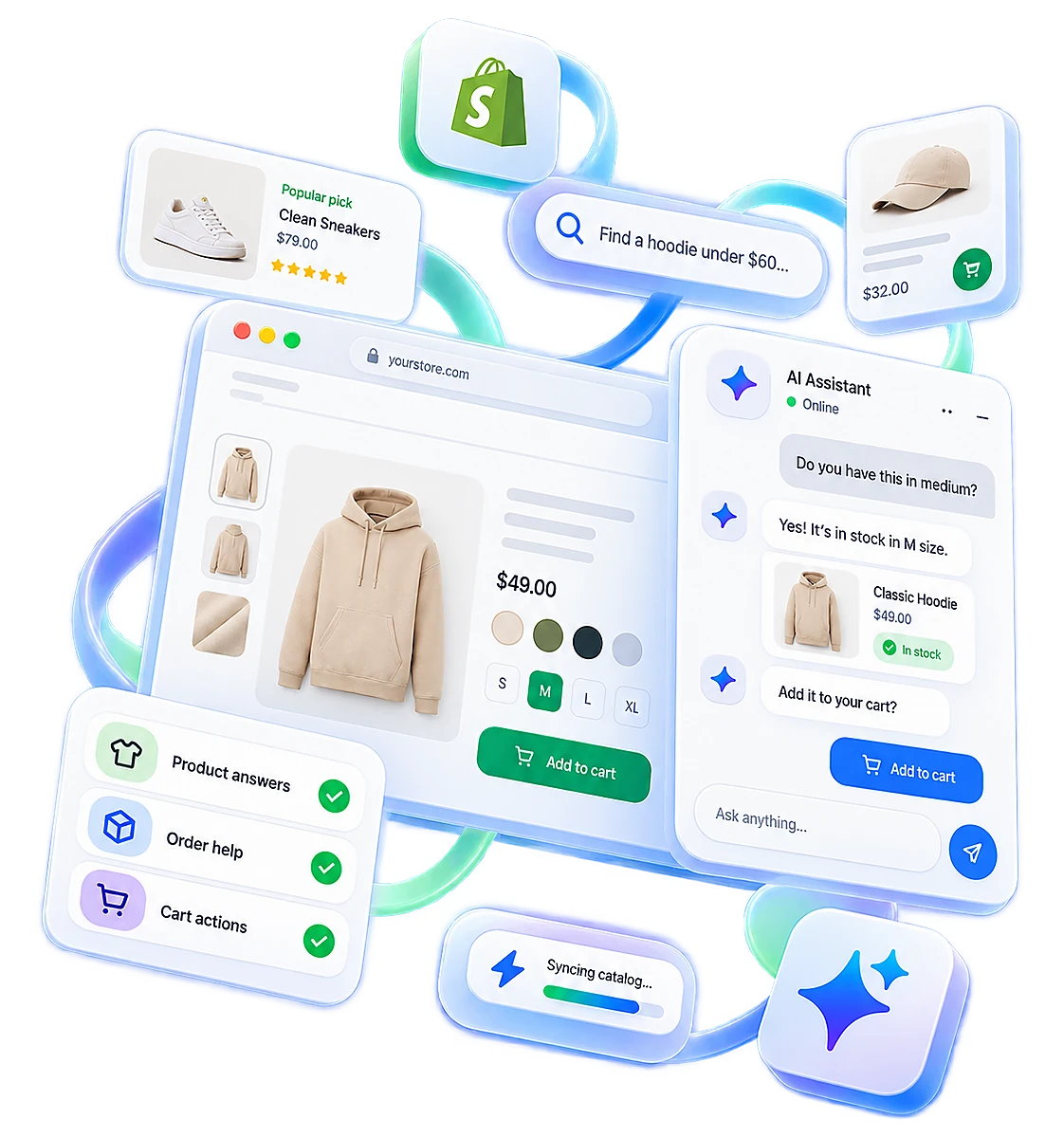
For storefront shopping actions, open Functions → AI Copilot Actions → Shopify. In Settings, scroll to Mode and choose Agent Mode. The Shopify Copilot actions cover product search, product cards, product details, adding items and viewing the real Shopify cart. The five actions currently enable together and work on the Shopify storefront.
Agent Mode enables the agent to use configured actions; it does not, by itself, authorize refunds or other order changes. Add custom API actions only when the migration needs them, with the permissions and failure handling that action requires. A Shopify Admin API token is not the first step for installing the widget or training policy answers.
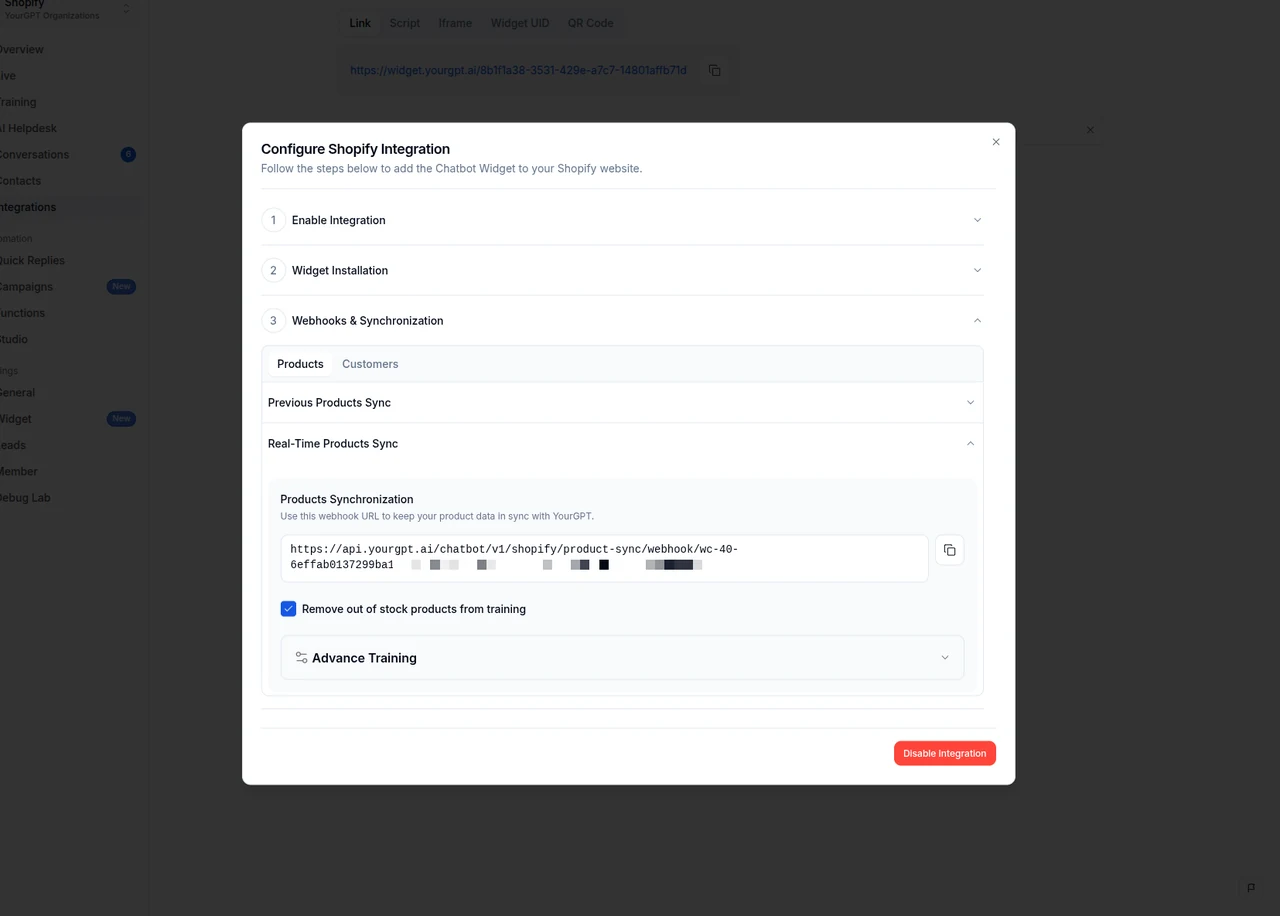
With sources and actions connected, give customers a dependable route to the team when a request needs a person.
Choose who will receive an escalation and who covers the queue when that person is unavailable. Tell the agent which requests belong with the team, such as policy exceptions or an order problem it cannot verify. A fast answer is not a completed request if nobody takes responsibility for the remaining work.
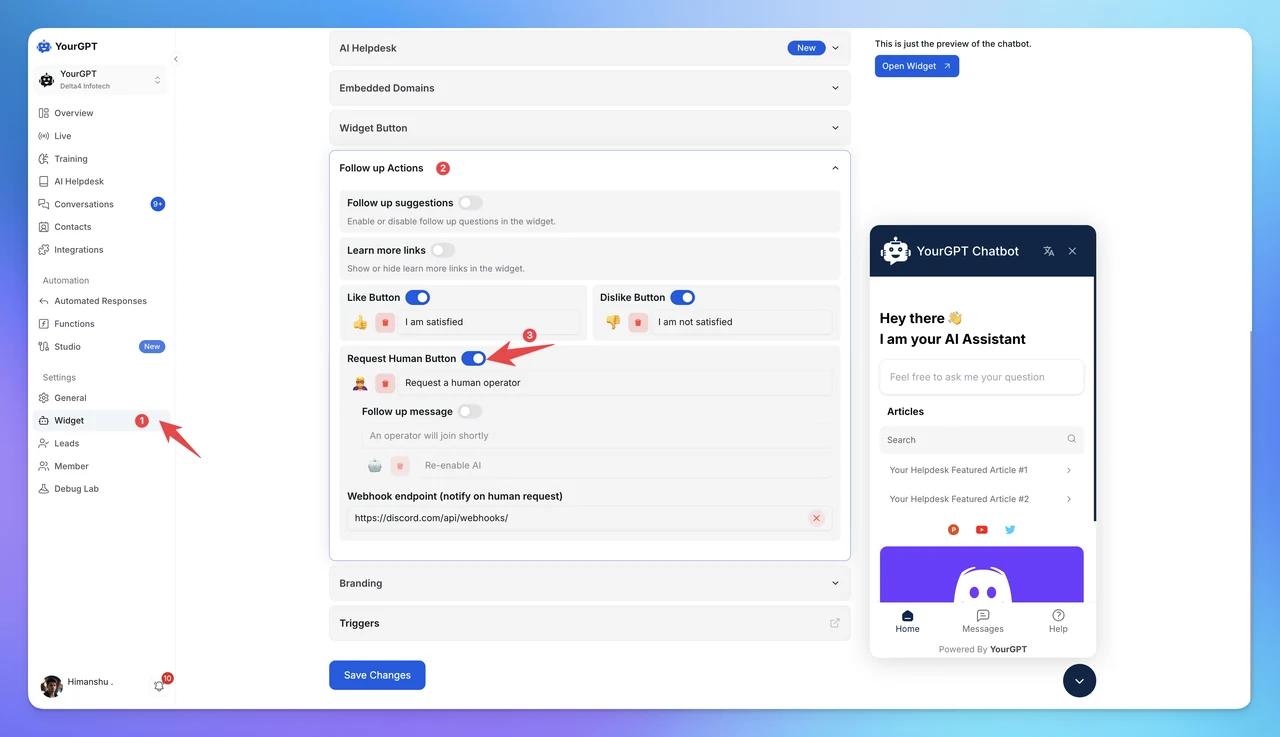
Set up the customer’s direct route to help:
You can also use Quick Replies with escalation enabled for phrases customers use to request a person. AI Studio provides custom routing when a request needs more specific conditions. Choose the human escalation route that fits the request rather than adding advanced configuration to every handoff.
Outside staffed hours, give customers an accurate expectation and a monitored contact route. Do not promise an immediate human reply unless someone is available to provide it. Include this case in the release tests alongside the ordinary support questions.
Do not assume the agent is working because the widget appears. Open the duplicate theme’s Preview in a separate browser session and replay recent support requests using current store pages and test accounts your team controls. Follow each request through to its result.
Use this acceptance table to record the evidence before switching traffic. The requests below are test categories; take the actual wording and relevant details from your own tickets.
| Request to replay | Evidence needed before launch | If it fails |
|---|---|---|
| Product or stock question | The product, variant and availability match Shopify, including after a controlled update. | Check catalog connection, product visibility and the matching webhook. |
| Shipping or return policy | The answer matches the current policy and its linked page opens. | Correct or refresh the written source and repeat the request. |
| Order status if enabled | The authorized test customer sees the correct order; an unverified visitor receives no protected details. | Keep order questions with the team until lookup and access checks pass. |
| Cart action if enabled | The chosen variant and quantity appear in the store’s actual cart. | Check Agent Mode and the enabled storefront actions. |
| Request for a person | The correct teammate receives the request and enough context to continue. | Fix the escalation route and repeat it during and outside staffed hours. |
For each failed case, record what the customer asked, what happened and which source or action needs correction. Re-run that request after the fix. Launch only the request types that pass their acceptance checks. A working product answer does not clear an order lookup.
Check the home page, product pages and cart on a phone as well as desktop. Open and close chat, use the keyboard, follow a product link and confirm that the chat button does not cover the add-to-cart control. If you enabled cart actions, verify the actual cart contents before following the checkout link.
A widget installed through the theme does not carry onto Shopify checkout. The chat stays on the storefront; checkout should still open with the intended cart. Compare page performance before and after installation under similar conditions rather than assuming any chat script has no impact.
Make the change when someone can watch incoming requests and deal with an escalation. Keep the current theme available as the rollback option, and record who is making the change and who is watching support.
Complete these checks before publishing the replacement theme:
Then change the customer-facing widget:
If the live widget fails, restore the previous theme and its chat availability, then verify the live storefront again. Tell the teammate watching support which route is active. Fix and retest the replacement before trying the switch again.
During the first staffed support period, review unresolved requests, failed actions and repeat contacts. Use first contact resolution to examine whether customers finished the task, rather than counting every reply as a success. Keep the rollout narrow if the same missing answer or failed handoff keeps returning.
Installing a new widget doesn’t automatically transfer your Shopify Inbox history. Keep access to older chats, and check what export and import options the replacement platform supports. For conversations that are still open, record who is handling each one and what they’ve promised the customer. That keeps the follow-up clear while you switch.
No. Shopify Inbox is free, so there’s no paid Inbox subscription to cancel. Turn off Online store chat in your published theme when you’re ready to stop new chats arriving there. You can keep the app available while your team finishes open conversations. Check the replacement platform’s charges separately.
Yes, after reviewing them. Old chats are useful for spotting recurring questions, but they can contain private customer details, outdated policies or one-off exceptions. Turn the useful answers into approved training material rather than uploading the whole history unchecked. Use current product information and policies as the starting point.
Yes. Start with product and policy questions, and send order requests to your team until the order lookup is connected and tested. Catalog synchronization doesn’t give the agent access to order details. Before launch, check that customers can reach a person when they ask about an order the agent can’t look up.
Check that the new theme includes the widget script and the app-embed settings you want. A script added to one theme’s theme.liquid file won’t appear automatically in a different theme. Preview the theme, look for duplicate chat buttons, and test the agent and human handoff before publishing.
No. Email and WhatsApp need their own connections, even if you plan to use the same agent across channels. Test incoming messages, replies and human handoff on each channel before changing where your team works. Confirm history-import options separately; connecting a channel doesn’t by itself move its older conversations.
The customer waiting for an exchange still needs a decision after the new widget goes live. Judge the switch by whether that request keeps moving, alongside the new questions the agent handles. A useful answer, a completed store action and a human follow-up are different results. Check each against what the customer needed to accomplish.
Use your first review of live conversations to decide where to improve the setup:
Keep a short handover record that names who maintains the knowledge, who owns connected actions and who covers escalations. Record where older conversations remain accessible and how to restore the previous chat setup. When a policy, theme or action changes, the owner should repeat the affected acceptance test. A successful launch test covers the version you tested.
Let those reviews guide the next stage of automation. Keep unresolved request types with the team while you fix their sources or actions, then test them again before expanding coverage. Include the work of maintaining the agent and following up on exceptions when you assess what the switch has improved. Use that evidence to decide which requests can move to the agent and which still need a person.
Create your agent, connect store knowledge and test the requests you want to move.

The reader can shortlist one or two platforms by primary job, existing stack, action depth, handoff, governance, and billing unit.
A practical breakdown of Gorgias Helpdesk and AI Agent pricing, including what counts toward each allowance, how to compare plans and how to budget with your own volumes.

Choose Halloween ecommerce campaigns that fit your products, with AI agent workflows, offer worksheets, launch tests and order measurement.

Compare outsourcing customer service with an AI agent using your own ticket mix, a cost model you fill in, and a clear rule for a hybrid split.
Export the Zendesk ticket archive, train an AI Agent on the help center, and test one real ticket before you stop the old queue.


Compare six Yuma alternatives by ecommerce capabilities, helpdesk compatibility, pricing and human handoffs to choose a replacement for your support team.
