How to Switch From Zendesk to a Customer Support AI Agent

Mitali
September 29, 2026
Export the Zendesk ticket archive before you cancel. Use JSON or full XML when you need comments, because the account CSV leaves them out. Train the agent on the help center and live policy pages, test one real ticket, and only then stop new Zendesk tickets.
Zendesk launched in 2007 as help desk ticketing software, built to manage a queue of tickets that people work through, and it still does that well. AI agents arrived later, partly through acquisitions in 2024 and 2026, so they run as a layer on top of the ticket. You can read that history on your own invoice, because the base price still pays for agents working the queue while AI resolutions are metered separately.
Zendesk’s own customer story with Vagaro reports a 44% AI agent resolution rate after three months. So more than half of requests still reach a person, and the queue carries most of the work.
An AI-native agent starts from the answer instead of the ticket. It answers from help center articles and policy pages, runs workflows and API calls in AI Studio, and hands hard cases to a person with Escalate to Human. When set up correctly and maintained, it resolves up to 90% of repeated queries, though the trade is that it is not a native ticket-lifecycle queue.
The move itself starts with the ticket history because the account CSV leaves out the comments. You should save the export with the replies before you cancel since the history lives in the text that the simple export omits. Begin by exporting the ticket archive.
Data exports stay off until the account owner asks Zendesk Customer Support to enable them. Make sure the request includes your Support subdomain. Once enabled, Admins can export tickets, users, or organizations to JSON, CSV, or XML.
The Admin Center export tools are not available on Team plans. You can still export through the REST API on every plan. Sandbox accounts cannot run the JSON or CSV export, so use the production account instead.
AI agent tickets cannot be exported. If those conversations matter to you, copy what you are allowed to keep before you treat the zip as complete.
The export screen uses the older Reporting layout. JSON, CSV, and XML sit on the same page, and the CSV line says the file contains ticket data except comments.

Zendesk emails a download link when the file is ready. The link is valid for at least three days, and the download is a zip. The files inside use the name pattern export_YYYY_MM_DD_uniqueID_X.
A large account can take minutes or more than a day. If the email never arrives, the latest link beside that export type downloads the last file you requested, not a fresh copy of the account.
You do not need the full account export for a smaller slice. In Support, open Views, open the view, and use Export CSV at the upper right, or Actions > Export as CSV. The view has to be unfiltered or the control is hidden.
On Enterprise, the role also needs the CSV Export permission. You can run that export once every 10 minutes, and the link arrives by email. A view that is too large can fail even when it opens on screen, so narrow the view or use the API instead.
If Tools > Reports is missing after exports are enabled, the admin’s role may be blocked from exporting, so ask the account owner to check that permission.
Download the zip before the link expires. Then check which file still holds what people wrote.
If you want the conversation history, the standard account CSV will not have it. Zendesk’s CSV export leaves out deleted tickets, comments, and descriptions. You also lose multi-line text, multi-select fields, and custom date fields.
Any ticket over 1 MB gets excluded from the CSV entirely, and dates in that file use the account time zone.
JSON is the format Zendesk recommends once an account passes 200,000 tickets because it can include comments. A ticket over 1 MB still exports, but without comments, and a second JSON file lists those tickets with an error.
Accounts over one million tickets come down in 31-day chunks. Both formats skip items whose system timestamp is within six minutes of the request, usually following the latest update rather than creation date. Organization JSON includes deleted organizations, marked with deleted_at.
Full XML includes ticket comments plus account settings, groups, organizations, and users. The file caps at 500 MB, about 200,000 tickets, so larger accounts cannot use it. XML ticket data does not include custom ticket fields, metric sets, or comment metadata.
Here is how to split the files when you open the zip:

The export does not guarantee row order. Do not match “row 12 in the sheet” to “the twelfth ticket in the agent” later. Match on ticket ID and requester email.
Check your bill before you cancel. A Zendesk bill has four parts as of 29 September 2026: base seats, AI agent resolutions drawn from an allowance, overage, and add-ons. Seats pay for the ticket queue while the AI agent has its own meter because it came later, so keep the numbers in hand before the account closes.
Support Team costs $19, Suite Team costs $55, and Suite Professional costs $115 on annual billing. Suite Enterprise is sold through Zendesk sales. Check the renewal date on your invoice to see when the next term starts.
AI agents are included in every plan and billed per automated resolution. Each plan includes a default resolution allowance per agent seat per month.
Suite Team and Support plans get $2, while Suite Growth and Suite Professional get $5. Suite Enterprise and Enterprise Plus get $10 per seat, up to $5,000 a year. Unused monthly allowance does not carry over month to month, so there is nothing to bank before you leave.
Older accounts on the previous model receive a count instead of dollars. They get 5, 10, or 15 automated resolutions per agent per month by plan. The maximum total is 10,000 a year.
Since 18 May 2026, Zendesk splits automated resolutions into Assisted escalation, Contained resolution, and Verified resolution. An LLM checks the conversation before it counts as Verified. Zendesk bills only Verified resolutions, and Contained resolutions do not consume the allowance.
Past the allowance, you can buy more ahead of time, which costs less per resolution, or pay overage billed monthly. Allow overage is the default. Don’t allow overage pauses the AI agent at the limit.
Add-ons are billed on top of the base plan, per agent a month on annual billing. Copilot is $50 on Professional and higher, and Workforce Engagement Bundle is $50. Contact Center is $83 per agent a month. Some features like App Builder bill on usage beyond the plan allowance.
| Bill line | How Zendesk charges it | Where to check it |
|---|---|---|
| Base subscription | Per agent seat per month | Your Subscription page or invoice |
| AI agent resolutions | Per automated resolution from allowance | Account, Billing, Resolution allowance |
| Overage | Billed monthly past allowance | Account, Usage, Overage |
| Add-ons | Per agent per month on annual billing | Your Subscription page or invoice |
Write down these items before you cancel:
Zendesk does not publish a per-resolution dollar rate on its pricing page. Use the allowance and overage lines on your own invoice as the real cost of AI agent resolutions.
The AI agent you move to bills differently. YourGPT uses AI Credits, not a charge per resolution or per seat, and the annual plans on our pricing page are $39, $79, and $349 a month.
The bill tells you what you stop paying, and the articles are what the agent will answer from.
The ticket zip stays in your own storage. Your agent learns from Zendesk Help Center articles through a documented import using three values: the support email, an API token, and the domain.
Collect these values in Admin Center before you open the agent workspace.
yourcompany.zendesk.com.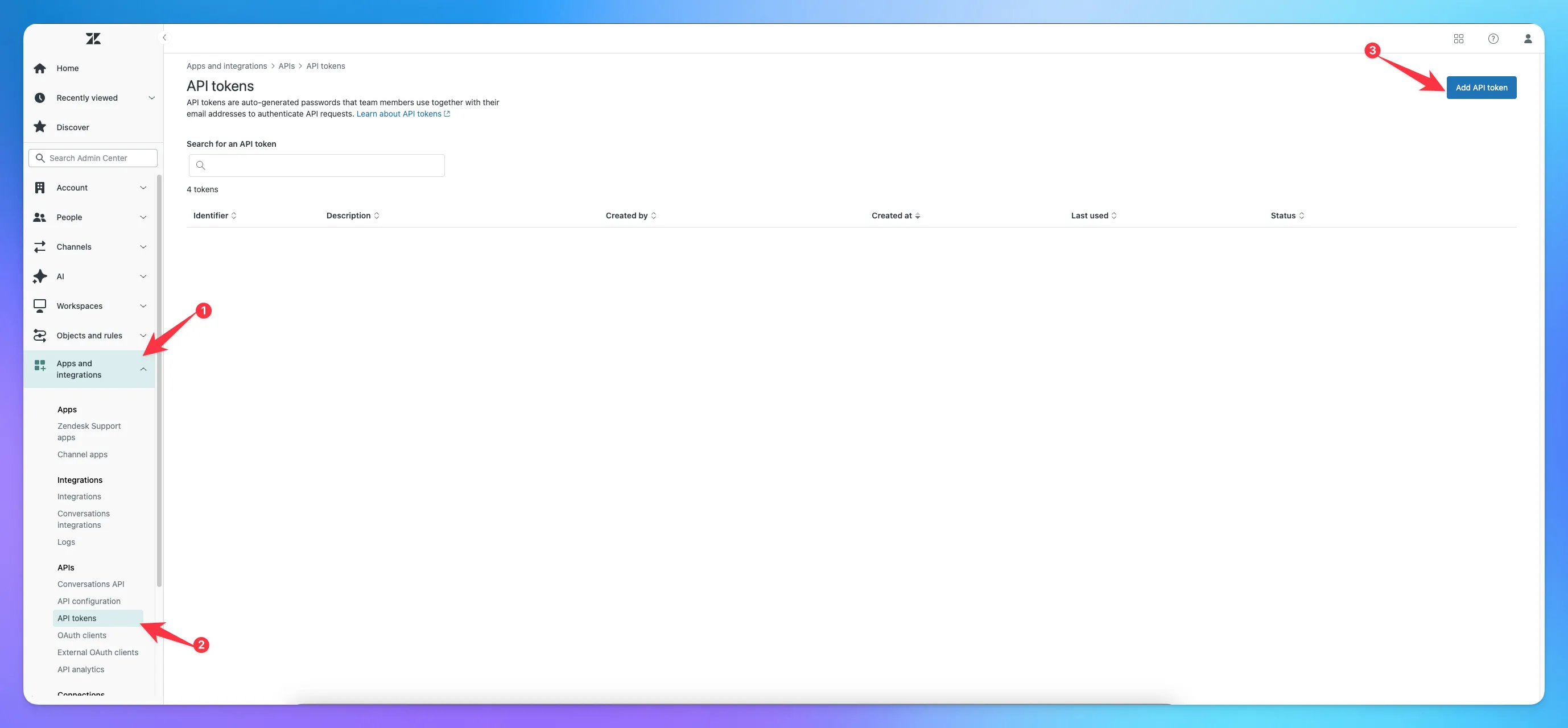
In the agent workspace, follow these steps to import the articles:
A second path trains from Zendesk learning data instead of just dropping articles into the helpdesk library. Use it when you want a training job rather than a second copy of the ticket CSV.
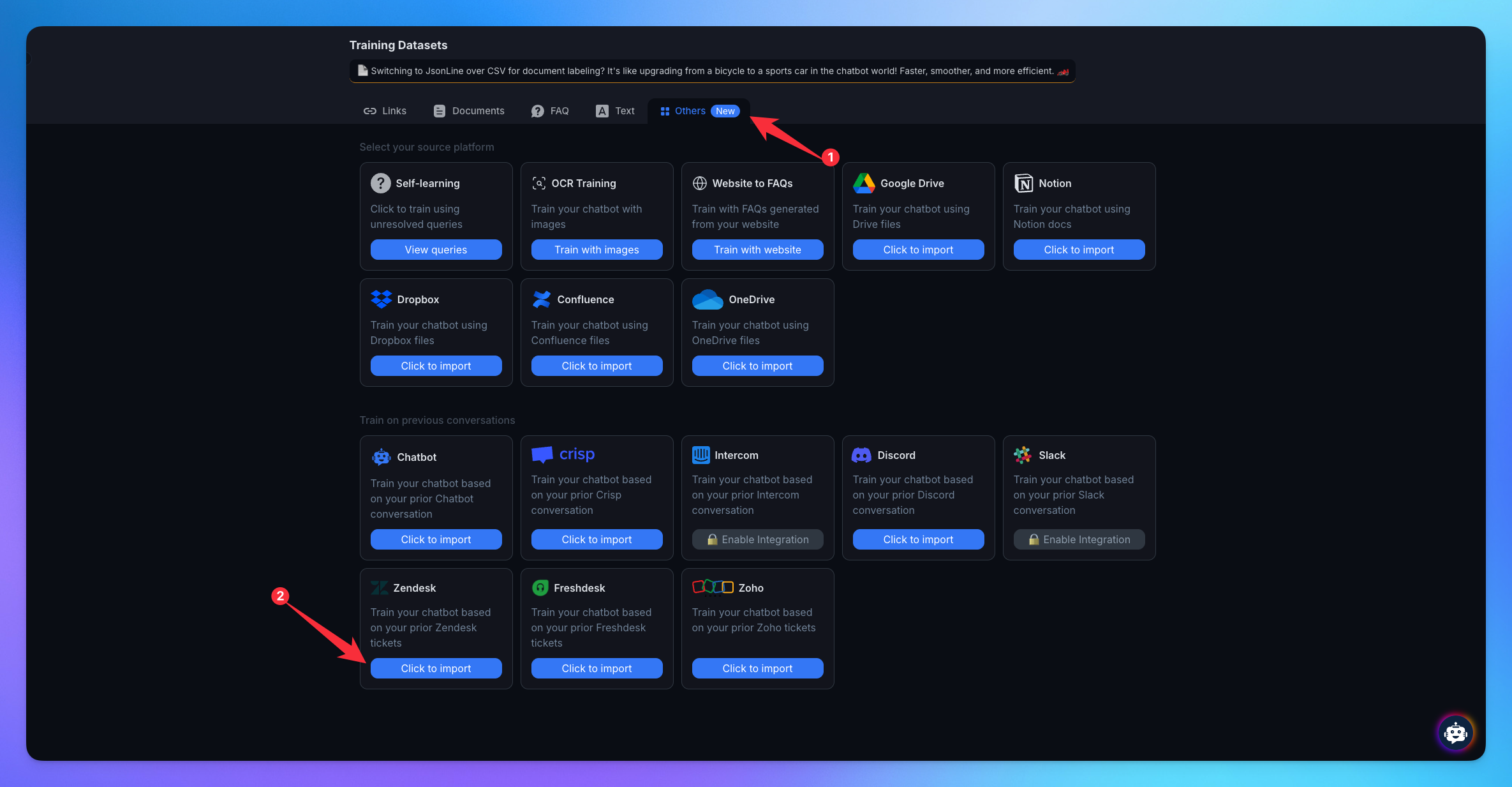
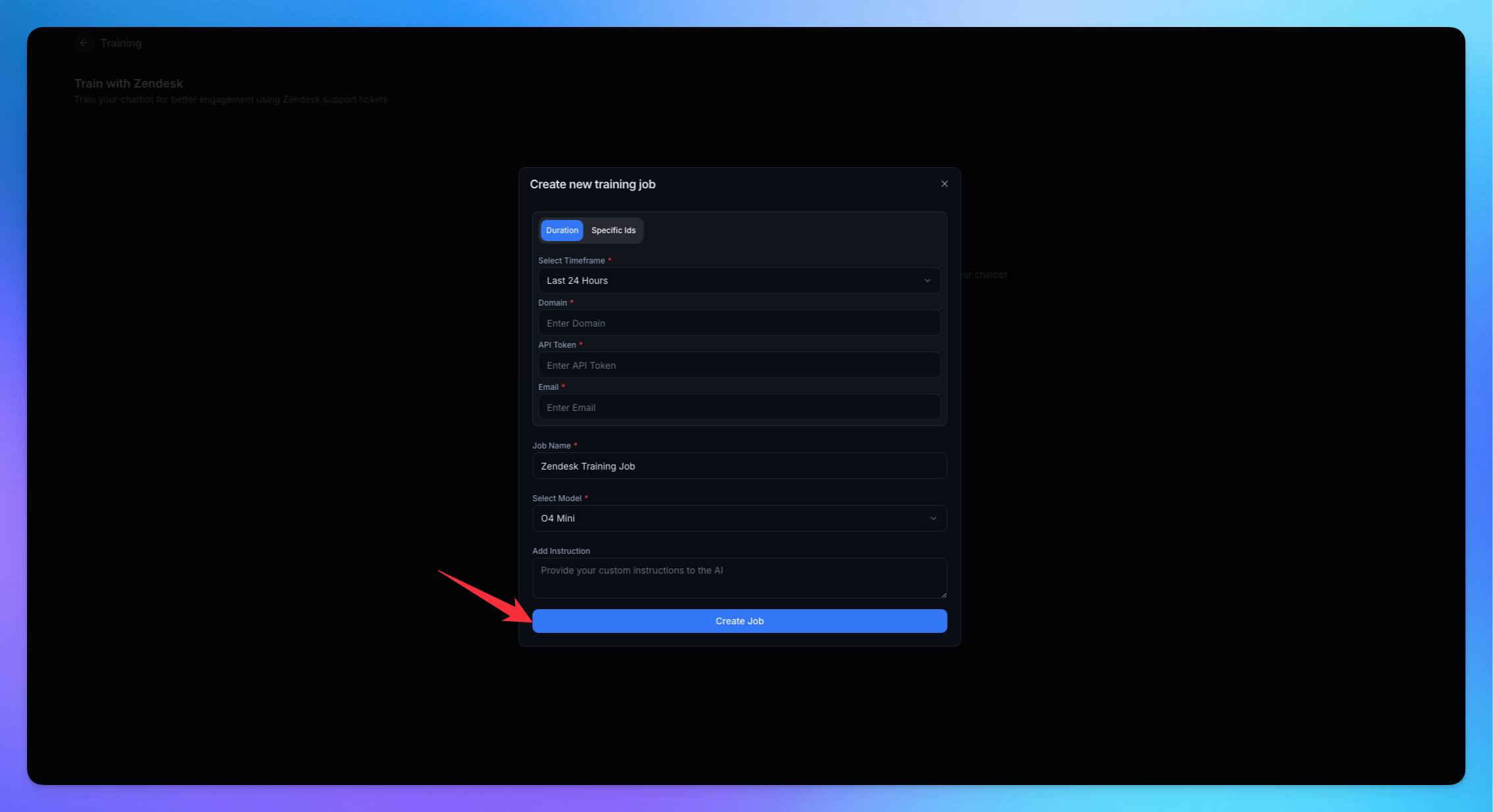
Neither path reads the account CSV. If a column from the spreadsheet is missing after import, that is expected since the import never received comments. Public policy pages outside the help center must be added as links because the agent cannot access them otherwise.
Your help center covers the articles you already wrote in Zendesk. But policies like refunds, billing, cancellation, or service terms often sit on public web pages. Add those URLs as training links so answers come from the page a customer can open. In Training, use Add New Link for each public URL, or open Crawl and click Extract for a whole section of the site, as part of website and link training.
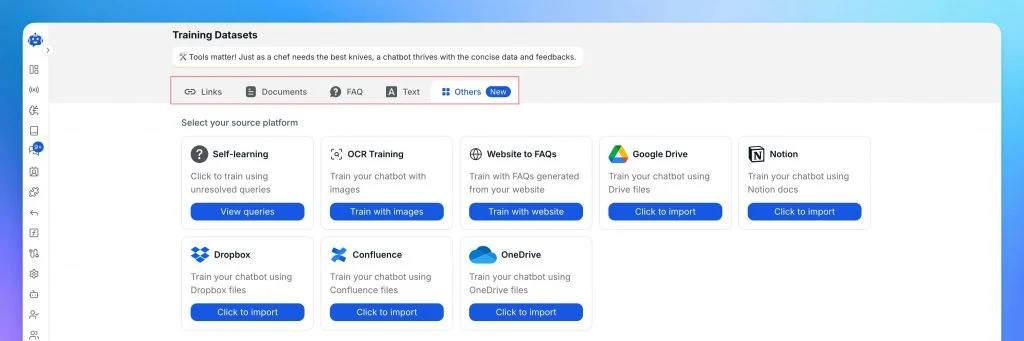
A policy without a public page goes under FAQs & Text. Pages have to be public for the agent to fetch them. When a policy page changes, refresh that source and set re-index timing in Advance Training. There is no control named ReIndex.
Answering refund and cancellation questions from the live page is key to customer support automation because the answer changes when the page changes. When those sources stay current, the agent can resolve up to 90% of repeated queries. That count only includes questions it was allowed to finish, which is how we reached 90%. It is not a promise for every ticket in the zip.
An account or order lookup is an API call you can build in AI Studio after the help center answers are holding. That call ties the reply to your own system, which a ticket queue alone cannot do, making it part of an AI customer service platform.
With the policy pages in place, you can decide when the agent should hand the thread to a person.
Refunds, charge disputes, and anything the help center does not decide stay with a person. Handoff has three routes, so you use the one that matches the request. A button or a phrase covers the simple exit, and AI Studio handles replies that need a workflow.
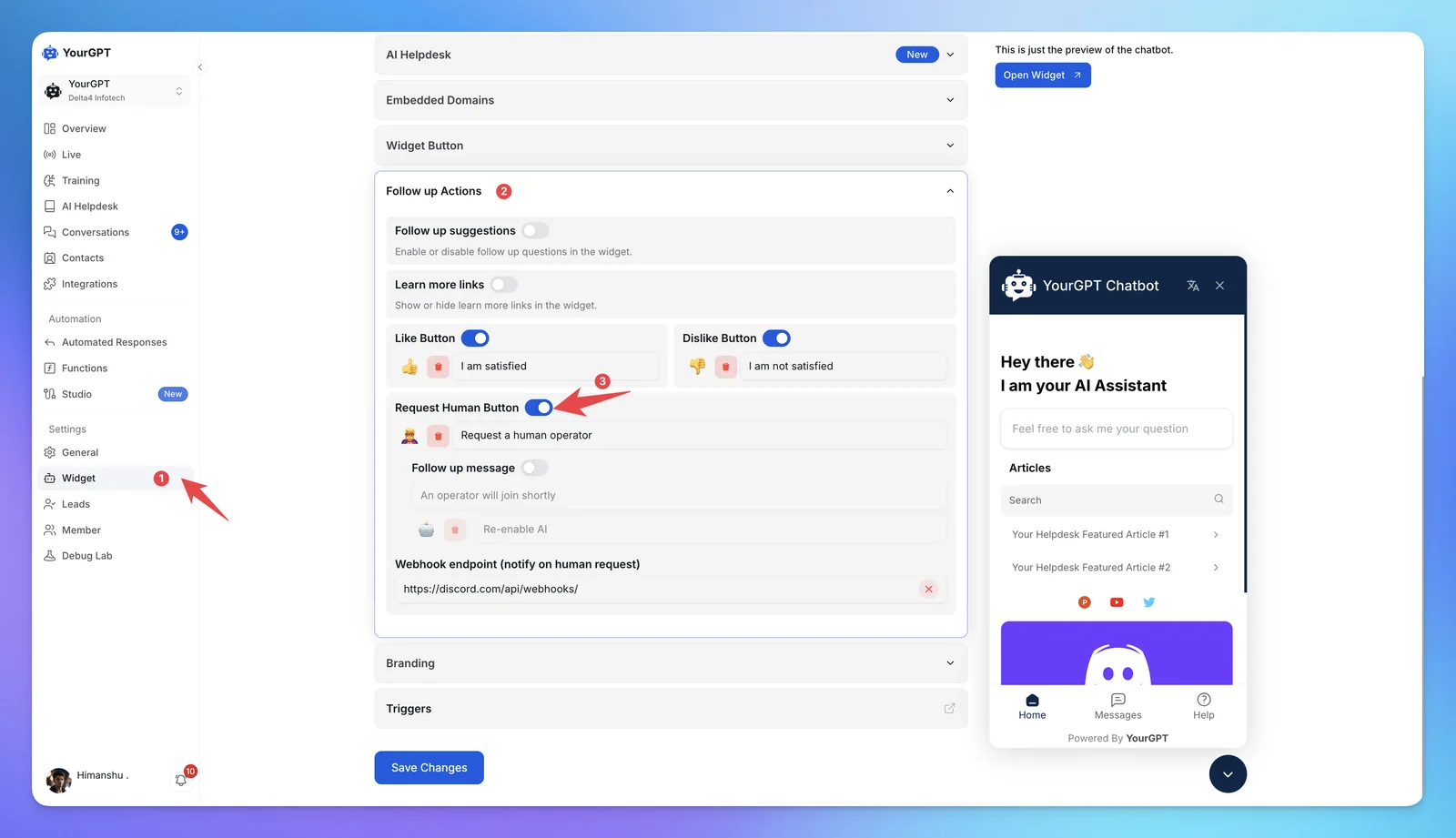
In widget settings, Follow-up Actions includes the Request Human button. A customer can press it to reach a person without typing a phrase. An optional webhook can notify Slack or Discord. Turn the button on before you publish.
Quick Replies match an exact phrase or a wildcard such as talk to human. You can turn escalation on for that reply, and these replies do not spend AI credits. Pull the phrases from subjects already in the CSV.
You can set up human handoff with the button, a Quick Reply, or a step inside the workflow. Escalation notifications ping the person when a thread is waiting.
AI Studio is where you build the workflow. That can be an intent, an order check, an API call, or a pass to another agent. Test it in the Emulator before you publish.
Escalate to Human, under Actions, is the step that pauses the agent so a person owns the thread. Assign Member only routes the conversation to a teammate, and the agent keeps replying beside them.
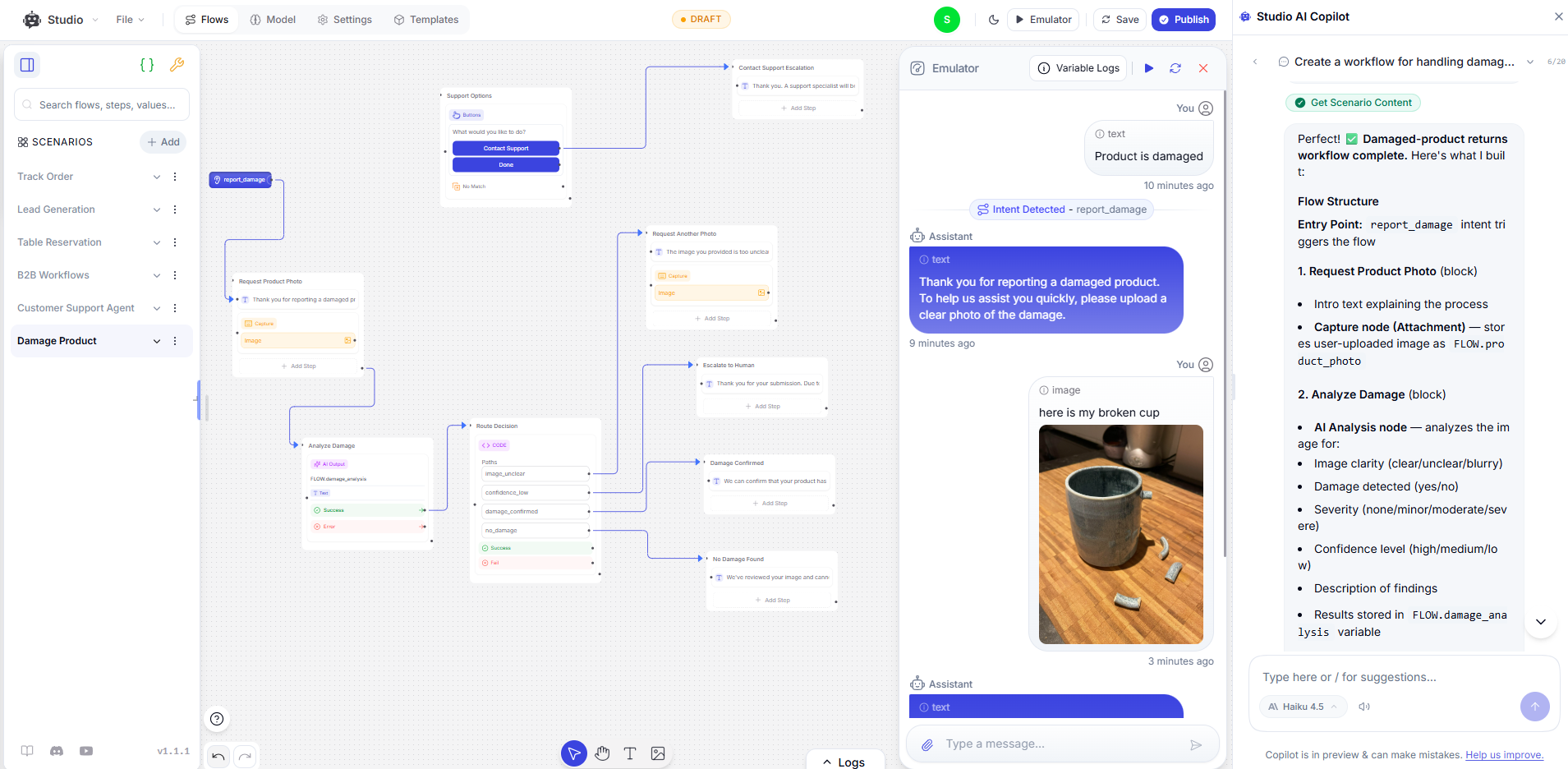
Check that pause on the ticket you are about to test. The thread should stay quiet until a person takes over, which is how a clean escalation feels to the customer.
Pick a solved ticket from your archive, ideally one handled using a help center article. You can use the CSV for the ID, subject, and requester email, or pull the JSON or XML if you need the full comment text. Do not type a made-up question because you need real context.
If the emulator misses the answer, the issue usually lies with the source data rather than the export. Check if the article was imported, if the policy URL was added under Add New Link, or if the page is public. Re-train that source and ask the same ticket again to confirm it works.
Pasting the CSV into File → Import does not add the missing replies. That control loads a workflow template, not a Zendesk zip.
After the Emulator matches the article, run one new conversation on the live widget. Use a real policy or help center URL the customer would have open. The web widget is one website chat channel, and the same test applies before you add the agent to email or other channels.
After a week of real threads, count only the tickets the agent was allowed to finish. Watch which tickets come back, because a ticket that returns was not resolved on first contact. The solved count in the export is a different number.
Once that ticket checks out and the handoff actually pauses the agent, you can move new conversations.
Leave Zendesk in place until that test has passed. Then stop the channels that create new tickets and watch one cycle of mail to be sure nothing still arrives only in the old queue.
Wait for the email link before you turn channels off. It can take a day. Team plans do not get the Reports export, and AI agent tickets are absent from the file even when the export succeeds.
Both bills run until you cancel. Keep both running until new conversations are arriving on the agent and the zip is already on disk.
No. The account CSV export omits ticket comments and ticket descriptions, and it also omits deleted tickets. Multi-line text, multi-select fields, and custom date fields are excluded. Use a JSON export or a full XML export when you need the comment thread. JSON still drops comments on a ticket larger than 1 MB and lists those tickets in a second file. Download the zip from the email link within the window Zendesk gives you, at least three days, and keep the file. The agent import does not read this CSV.
The Admin Center export tools are not available on Team plans. The account owner also has to ask Zendesk Customer Support to enable data exports, and the request must include the Support subdomain. Until both are true, Account then Tools then Reports will not show a usable Export tab. Every plan can export through the Zendesk REST API instead. Sandbox accounts cannot run the JSON or CSV export, so the archive has to come from the production account. A view can still be exported to CSV from Support when the view is unfiltered and the role is allowed.
No. Assign Member sends the conversation to a teammate and leaves the agent active, so both can answer. The action that pauses the agent is Escalate to Human, under Actions in AI Studio. AI Studio is where you build the workflow, which can check an intent, call an API, or pass the thread to another agent. The other two handoff routes are the Request Human button under Follow-up Actions, and a Quick Reply that escalates on a phrase your tickets already use. Test the pause in the Emulator with a real ticket the help center is not allowed to finish, such as a refund outside the article. Publish only after that reply stops.
No. Zendesk states that AI agent tickets cannot be exported. The JSON, CSV, and XML account exports do not add them back if you widen the date range. Treat those threads as missing from the archive and keep any copy you are allowed to store before you cancel. The help center import is unaffected, because it brings articles, not those tickets. If a test question only ever lived on an AI agent ticket, pick a different ticket from the CSV, one with a subject and a requester email, and judge the answer against the article.
Cancel your Zendesk subscription only after the AI agent answers one real ticket from your help center or a public policy page. When a question falls outside the article, the reply must stop on Escalate to Human. Assign Member keeps the agent replying next to the teammate, so it does not count as the handoff.
The zip file is an archive you keep, not training material for the agent. Zendesk added AI to a ticket queue. You are moving to a setup where the agent answers first and the person takes what it cannot finish.
Export the ticket archive, import the help center, then test one real ticket.

Compare six Yuma alternatives by ecommerce capabilities, helpdesk compatibility, pricing and human handoffs to choose a replacement for your support team.

Move from Gorgias with a verified ticket archive, tested AI workflows, human handoff and a channel cutover plan before ending your subscription.
TL;DR The Gorgias AI Agent is the automation layer inside the Gorgias helpdesk, split between a Shopping Assistant for pre-purchase conversations and a Support Agent for post-purchase support. A connected Shopify store is required, and Gorgias documentation rules out platforms such as BigCommerce, Magento, and WooCommerce for the AI Agent. Billing runs on two separate […]


TL;DR Gorgias is the closest Richpanel alternative for Shopify stores that need native order actions directly inside support tickets. YourGPT fits stores that want one AI agent handling requests across web, WhatsApp, Instagram, and email, while Tidio and Re:amaze suit smaller teams looking for lighter, lower-cost options. Richpanel’s AI pricing starts around $500/month for two […]

TL;DR Shopify Inbox is a good free option for stores that only need basic storefront chat and simple customer conversations. Stores usually look for alternatives when they need multichannel support, stronger team workflows, or automated order actions. YourGPT is strongest for cross-channel AI automation, Gorgias for Shopify-native order workflows, and Tidio for smaller stores that […]
TL;DR Tidio recently restructured its top paid plan, and many 2026 reviews still describe the old pricing model. Confirm current pricing directly on Tidio’s site before budgeting. Lyro, Tidio’s AI agent, runs on Anthropic’s Claude rather than ChatGPT. Only the Premium tier carries a guaranteed resolution rate, well below the average Tidio advertises elsewhere. Billing […]