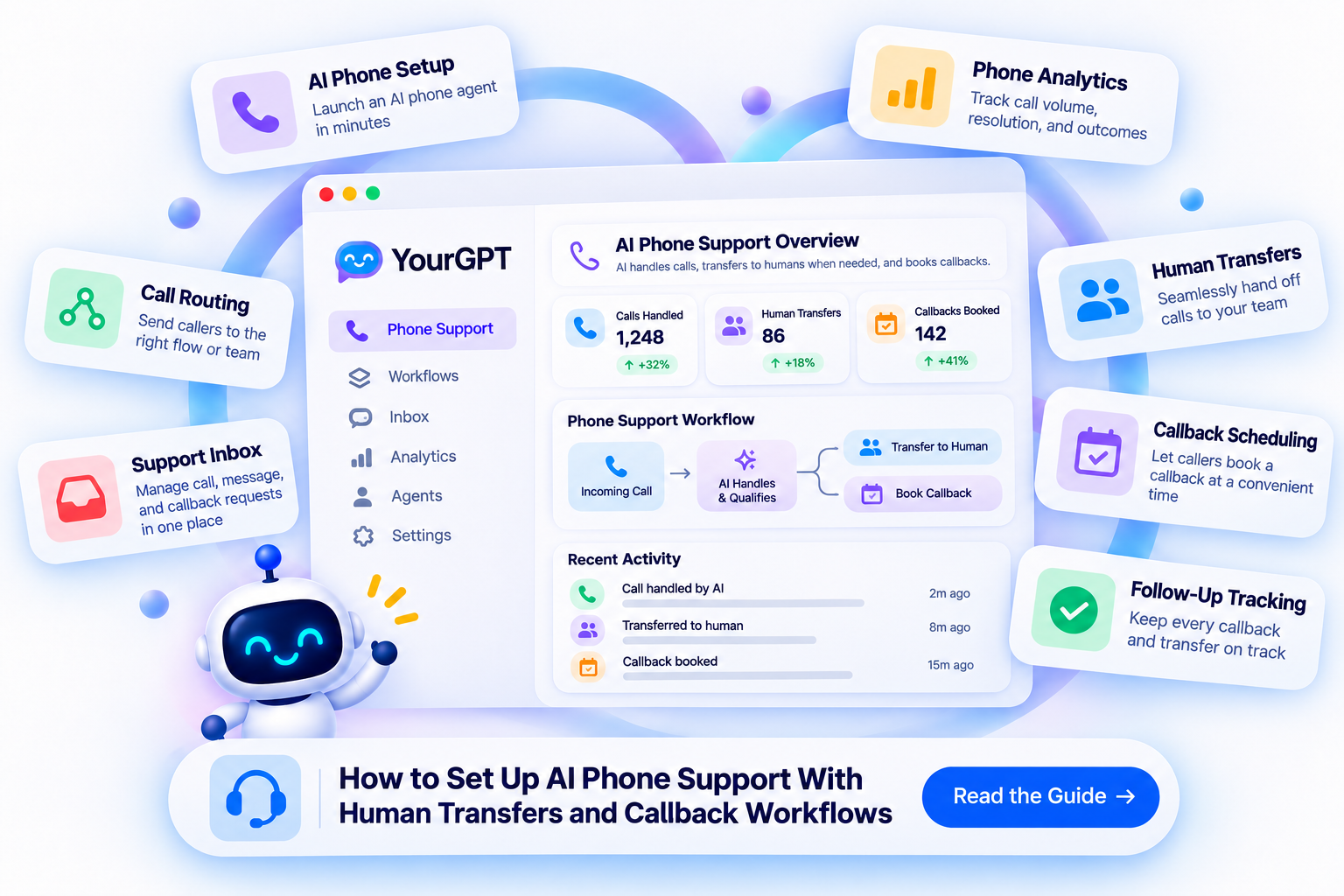
How to Set Up AI Phone Support With Human Transfers and Callback Workflows

Rajni
November 12, 2026

Set up AI phone support in YourGPT by creating a phone agent, adding its greeting and support instructions, and testing its voice in the browser. Add Call Transfer for live handoffs and Cal.com booking for scheduled callbacks, then connect your Twilio number. Before launch, make a complete test call: check the answer, reach the receiving person, and confirm that a callback booking appears in the right calendar. A booking still needs someone to make the return call.
A caller asking about a billing policy may need a short answer. A caller disputing a charge may need a specialist. Both can arrive on the same support number, so your setup needs to handle the conversation as well as decide what happens next.
YourGPT is an AI-first, no-code platform for customer service, sales, and operational automation. Its phone agents can answer support questions, use enabled functions, book appointments, and transfer calls to a person. You configure these capabilities in the dashboard without building a custom calling application.
For this setup, choose one support team and give callers three useful outcomes: an answer the agent can provide, a conversation with that team, or an agreed callback. The steps below cover the agent, the phone connection, and the work your team must do after the call.
AI phone support answers incoming calls, understands the caller’s request, and determines whether to provide an answer, transfer the call to a human, or arrange AI phone support handles routine requests while human agents step in when a caller needs additional assistance. The voice agent identifies the caller’s intent, checks available business information, and decides which configured action can address the request.
Calls generally follow three paths:
The key is knowing when to involve a person. A voice agent may answer routine questions accurately, but it should not make unauthorized account decisions or continue handling requests beyond its scope.
Clear escalation rules, working transfer destinations, and assigned callback responsibilities help prevent callers from being left without assistance.
The following steps explain how to configure these workflows in YourGPT and test them before launching your AI phone support line.
Start with a call type your team already handles, such as billing questions or product setup. Use recent support conversations to identify the answers callers need and the requests a person should take over. A general policy question and a change to a customer’s account need different handling.
Have these ready before opening the phone integration:
In your YourGPT workspace, open the agent you will use for support. If you are starting fresh, create and name the agent first, then add its business knowledge.
In Training, choose Add New Link, paste a relevant support-page URL, and click Add. Wait for the training status to show success before testing answers. Add the pages that cover the work you chose rather than relying on a broad homepage alone.
Give the agent the same current policy your support team uses. If two pages disagree, correct them before training; a longer prompt will not settle a contradictory refund or billing policy. The AI knowledge base guide covers how to organize these sources when your help content needs work.
Open Integrations, find Phone Integration, and choose Set Up Now. Create a phone agent from a suitable template and give it a recognizable name, such as the support team it serves. Its name should help colleagues identify it later when assigning a number.
In Configuration, work through the greeting, instructions, model, and voice:

The voice preview lets you hear the greeting and conversation before connecting a paid phone number. It does not test the Twilio connection or whether a colleague will receive a transferred call; those checks come after the number is connected.
For a brief introduction to the voice AI agent, this official video shows the no-code approach:
Phone instructions need to account for how people speak. Callers pause, correct themselves, interrupt, and answer part of a question. Ask one thing at a time and let the agent clarify a missing detail instead of reading a long list aloud.
A greeting for a software support line could be: “Thanks for calling Acme support. I’m the AI assistant. What can I help you with today?” Replace the business name and scope with your own.
Use the following as a starting point for Base Prompt, then adapt it to the support policies and functions you have enabled:
You are the AI assistant for our support team. Answer questions using our approved support information. Keep replies brief and ask one question at a time. If the caller corrects a detail, use the correction.
When a caller asks for a person or needs an account decision outside your role, offer the configured human transfer. If the caller prefers a callback, collect the reason and return number, ask their time zone, and use the enabled appointment function when they want a scheduled slot.
Repeat the phone number and agreed date, time, and time zone before booking. Ask permission for the return call. Tell the caller it is booked only after the booking succeeds. If it fails, explain that the slot has not been booked and offer an available alternative.
Try these instructions with a recent support request your team is allowed to use. Listen for long answers, repeated introductions, misheard names, and questions that combine too many details. Change the greeting or instructions where the conversation becomes awkward, then try it again in Voice Chat.
Keep business policies in training sources and call behavior in the prompt. That separation makes a policy change easier to maintain without rewriting the agent’s entire personality.
Once the browser conversation and functions are ready, connect the number callers will reach. In the phone integration’s Settings, enter the four Twilio values:
Find the account credentials in your Twilio console and the Phone SID in the selected number’s properties. In Assign Phone Agent, choose the agent you just configured, then click Enable. Check the phone integration settings if a field needs clarification.
Keep the Auth Token in the integration settings. It does not belong in support documents, the Base Prompt, or screenshots shared with colleagues. If the number does not connect, check that the account credentials, selected number, Phone SID, and assigned agent belong to the intended setup.
Call the connected number from a phone you control and listen for your greeting. You have now tested the actual phone connection, but run the complete handoff and callback checks below before directing customers to it.
This official walkthrough covers the same native setup. Calendar booking starts at 1:42, human transfer at 2:29, and the phone connection at 2:52:
A caller should be able to ask for a person without repeating the same request several times. Decide which team should receive the first version of your support line, then add that destination to the phone agent.
In the phone agent’s Functions tab, find Call Transfer under Function Templates and open it. Configure the template as follows:

Tell the receiving colleague when you will test, then ask the agent for a human during a call. The test passes when the colleague answers and you can speak to each other. A function being enabled proves only that it is available to the agent.
Check what the receiving phone system does when the line is busy, unanswered, or closed. A phone transfer and a callback are separate paths: adding the transfer function does not establish an automatic return to the AI if nobody picks up.
If a caller wants a callback should the transfer fail, arrange and record that agreement before trying the transfer. Have the receiving team cancel the unnecessary follow-up if the call connects and the issue is handled. Keep the request and relevant context in the conversation so the next person can continue without starting from the beginning; use the same human escalation ownership rules across phone and other support channels.
Choose the callback path your team can actually deliver. A caller who needs an agreed appointment can book a calendar slot during the conversation. A team that returns calls from its support queue can keep the request in Conversations and assign someone to follow up.
Use a Cal.com event type intended for support callbacks, with the correct team availability, duration, and meeting instructions. Make it clear who calls whom so the customer does not mistake a return call for a meeting they must join.
During the call, collect the reason, return number, time zone, preferred time, and permission to call back. Repeat the number and slot before booking. After the calendar saves it, the agent can confirm the appointment.
For example, a callback confirmation for a billing review could sound like this: “Your billing callback is booked for Tuesday at 10:30 AM India Standard Time. Our billing team will call the number you confirmed. Is there anything you would like them to know before they call?” Use the actual calendar result and receiving team in the confirmation.
The team must still make the call. Saving an appointment does not automatically dial the customer. If the calendar save fails, explain that the appointment has not been booked and offer another available slot or the staffed transfer route.
If your team works through a callback queue, agree on the return-call window with the caller. After the call, open Conversations, use the Phone filter, and select the conversation. Add the callback details in Notes and assign the responsible colleague through Assigned Operator.
A useful note records the reason, confirmed return number, permission, caller’s time zone, promised window, and responsible team. A billing callback note could read:
Billing review requested. Return number confirmed during the call. Permission given for a callback. Caller expects the billing team on Tuesday between 10 AM and noon IST.
Store the actual number with the request rather than making the colleague search through the transcript.
Manage the conversation and its assignment until the return call is made and the result recorded. This is a team follow-up process; the saved conversation alone does not create a calendar booking.

Before launching your AI phone support, test the complete calling process using support scenarios your team regularly handles. Use phone numbers you own or have permission to test, and have a colleague available to receive transferred calls and verify callback bookings.
Run these checks to confirm that the AI agent, human transfers, and callback functions work as expected:
Include tests with background noise, interruptions, or unclear speech when relevant. If the agent repeatedly mishears names or phone numbers, review the available voice and transcription settings before testing again.
After launch, open Conversations in YourGPT and use the Phone filter to review call records. Look for incorrect answers, repeated questions, missed escalation requests, and incomplete callback details.
Track three outcomes separately:
Assign a responsible team member to each pending callback and record the outcome once the return call is completed. A callback scheduled for a future time should not count as missed before its agreed window has passed.
Review these outcomes alongside your customer service metrics. If a request requires further investigation, move the relevant details into your support ticket process and keep a clear owner until it is resolved.
YourGPT reports over 90% AI resolution in maintained production deployments for eligible repeated requests where AI retains ownership. This is not a phone-specific benchmark or a guaranteed result for a new support line. Measure your own call outcomes to understand performance.
Start with a limited set of support requests and the staffed hours you have tested. When you change the receiving number, callback calendar, or escalation instructions, repeat the relevant tests before extending the setup to more callers.

The connection in this guide uses a Twilio voice number. If you want customers to keep calling an existing business number, ask your carrier whether it can forward to that number or be ported to Twilio. The available option depends on the carrier and number.
Test the incoming route before changing your published support details. Keep the human-transfer destination separate so the agent does not transfer callers back to the number that answered them.
The result depends on the receiving phone system’s busy and no-answer handling. Test whether it reaches a colleague, voicemail, or another destination; do not assume the AI will automatically resume the conversation.
For a caller who accepts a callback if the transfer fails, record that agreement before transferring. Make the follow-up conditional, then close it if the transfer connects and the caller no longer needs a return call.
No. The Cal.com function in this setup saves an appointment. Your team still needs to make the return call and record what happened. A callback note in Conversations also needs someone to act on it.
If you want to run outbound calls with a voice agent, use the separate phone campaign workflow. Set up and test its audience, timing, and calling behavior rather than treating a calendar event as an outbound calling instruction.
Do not assume a spoken briefing is included. The Call Transfer function connects the call to the receiving number; an automatic warm-transfer briefing is a separate behavior to confirm for your telephony setup.
Give the receiving team access to the conversation summary and useful notes so they can review the request. Assigning that conversation to a colleague tracks responsibility, while the phone transfer connects the audio.
Ask for the caller’s time zone, then repeat the full date, time, and zone before booking. Check that the support calendar offers that slot and that the saved event displays the intended time for the receiving team.
Avoid confirmations such as ‘tomorrow morning’ without a time zone. Use the caller’s local time in the spoken confirmation, while keeping the corresponding time clear for the colleague who will make the call.
Budget for your YourGPT plan and AI usage, the phone number and calling charges in your Twilio account, and any calendar subscription you use. Check current account pricing rather than assuming one platform fee covers every part of the call.
YourGPT uses AI Credits, with consumption depending on the selected model and workload. Review the current plan allowances, then use a representative set of test calls to estimate the usage your support line will create.
AI phone support needs a complete path from the caller’s first question to the next useful action. In YourGPT, that starts with the support knowledge, greeting, and voice, followed by the transfer destination and callback calendar or team process. Connecting Twilio brings that setup onto a real number; the browser preview lets you work on the conversation before reaching that stage.
The most useful launch check is a call your team can follow from both sides. Ask a real support question, speak to the receiving colleague, and make a callback appointment that appears in the correct calendar. Then open the conversation and check whether another teammate could understand the request and handle the follow-up from what was recorded.
Keep the initial line focused on a support job your team knows well. Review the first calls, fix the points where callers repeat themselves or follow-up gets delayed, and expand to another call type once the existing process works. Your agent can handle more of the conversation as its knowledge and enabled actions improve, while your team stays responsible for the commitments that require a person.
Create your phone agent, set up human transfers and callbacks, then connect your number and test the call.
A practical platform benchmark with YourGPT production results, external field evidence, a complete scorecard and industry-specific acceptance tests.
Trace recurring questions to the step where customers get stuck, apply the right fix, and measure whether more customers finish.

Set up YourGPT AI agents to answer questions, complete support actions, and resolve requests with business knowledge and clear human-assistance rules.

A practical rollout plan for support teams covering scope, knowledge preparation, YourGPT setup, testing, launch gates, security, and honest ROI measurement.
TL;DR The shift. Current HR agents read a live leave balance from the HRIS, check it against policy, submit the request and route it to a manager inside one conversation. The gap. Most HR self-service stops at the answer. Employees are told the policy, then open a portal to act on it, and that is […]
Real estate growth starts with meaningful conversations. Every buyer, renter, or investor who visits your website is looking for quick answers about properties, pricing, availability, locations, viewing options, or the next step in their journey. YourGPT helps real estate teams turn those moments of interest into qualified leads. With an AI chatbot trained on your […]