In-App Chat Support With an AI Agent for SaaS and Mobile Apps

Rajni
October 20, 2026
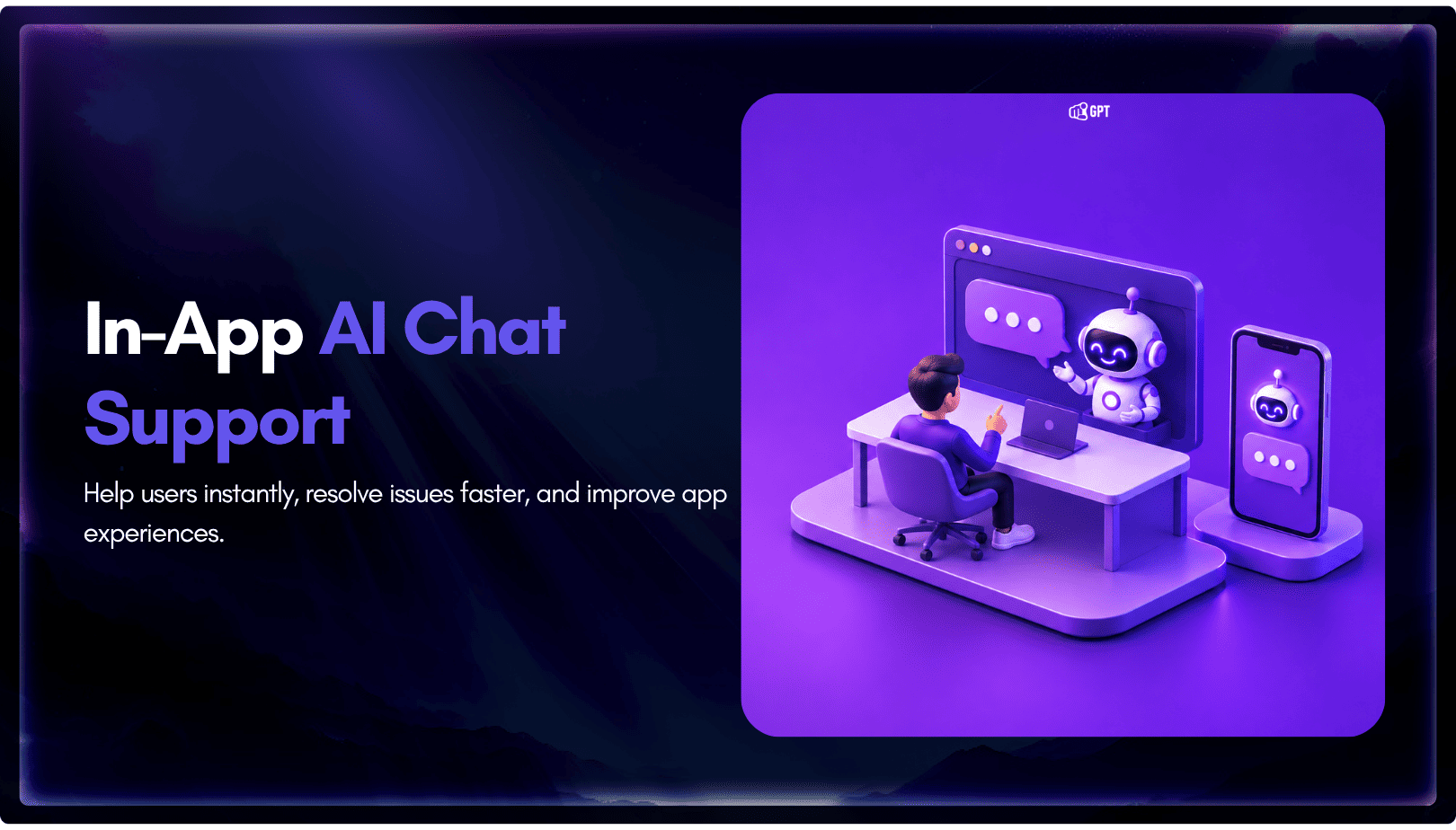
In-app chat support puts a support conversation inside your product, on the screen where the user got stuck. Place the chat on the screens that already generate tickets and train the agent on the docs behind each one. Install it with the widget script or npm package on web, or a mobile SDK in your app. Pass the logged-in user’s details so nobody asks for an email twice, and send account-specific problems to a person.
A user who hits a failed payment on your billing page has two bad options. They can leave the product to search a help center that may not mention the error, or they can send an email and wait. Either way, the question arrives stripped of the one fact that would answer it fastest: which screen they were on.
In-app chat keeps that fact attached. The user asks from inside the product while signed in, so the conversation can open with their account and their screen. That is also why it needs more planning than a chat bubble on your marketing site. The questions on a settings page differ from the ones on an integrations page, and some of them should never be answered by an agent at all.
This page covers the channel itself. You will pick where chat belongs in the product and what the agent needs on each screen, then install it on web and mobile and decide when a person takes over.
In-app chat support is a chat channel inside your product that lets signed-in users ask for help on the screen where they are working. A website chat widget talks to anonymous visitors, often before they buy. Email moves the problem out of the product and into a queue. In-app chat sits in between: it is live, it knows who is asking, and it can know where they are.
| Attribute | Website chat widget | Email support | In-app chat |
|---|---|---|---|
| Who asks | Anonymous visitors and prospects | Anyone with your address | Signed-in users of your product |
| What you know at the start | The page URL, little else | A sender address | The account, the plan and the current screen, if you pass them |
| Typical questions | Pricing, features, fit | Anything, often after the fact | How to finish the task on this screen, or why it failed |
| Where the user waits | On your site | Outside the product | Inside the product, next to the problem |
The last row is the one that matters for design. An in-app user is mid-task, so every question you make them answer before help arrives is a question about something your product already knows.
That context only helps if the chat appears where the questions actually start, so placement comes first.
Setting up in-app AI chat support involves more than adding a chat widget to your product. The AI agent needs access to relevant documentation, context about the user’s current screen, and a clear process for handing complex issues to your support team.
For SaaS platforms and mobile apps, the setup starts with identifying where users need help most. From there, you can train the AI agent, connect it to your web or mobile application, configure human handoff, and test the experience before making it available to customers.
The following steps cover the complete setup process.
Start with last month’s tickets rather than a guess. Export them from your ticketing system and tag each one with the screen it came from, using the URL or the feature the user names. A few screens will hold most of the rows.
In SaaS and mobile products, five screen types are worth checking first. What changes between them is what the agent needs to know and what it must not decide.
| Screen | What users ask there | What the agent needs | What goes to a person |
|---|---|---|---|
| Settings | Where a setting lives, what a toggle does, who can change it | Settings docs and your roles and permissions page | Account ownership changes and access disputes |
| Billing | Plan limits, invoice dates, how to change a card | Pricing and billing policy pages | Refunds, failed charges and plan exceptions |
| Integrations | How to connect a tool, which permissions it needs | Setup guides for each integration | A connection that fails after following the guide |
| Empty states | What to do first, how to import data | Getting-started docs and import guides | Bulk migrations that need your team’s help |
| Error screens | What the error means and how to recover | A troubleshooting page per error message | Errors with no documented fix, and anything that looks like a bug |
If a screen has no doc behind it, the agent on that screen has nothing true to say. The right-hand column matters just as much. Billing is where an agent that sounds helpful can do damage, because “you’ll get a refund” is a promise only your team can keep.
Once you know which screens get chat, check that each one has a source the agent can answer from.
Go down your screen list and match every row to a public page: a help article, a setup guide, a policy page. Add those pages under Training → Add New Link, or crawl the whole help center with Training → Crawl → Extract. Short answers that do not have a page yet can go in FAQs & Text. The same rules apply as for any agent trained on your own data: the page must be reachable, and the agent answers only as well as the page is written.
Error screens need the most care. Put the exact error text a user sees into the troubleshooting page, because users paste that text straight into chat. A page titled “Connection problems” that never quotes “Token expired” can leave the agent guessing.
Watch for pages that disagree. If an old pricing page and a new one both describe plan limits, the agent can pick the wrong one, which is a common reason AI agents give wrong answers. Remove or update the stale page before launch rather than after the first complaint.
With the sources in place, the next job is to get the agent into the product itself, starting with the web app.
A web app takes the same widget as a website, but you control it from your own code. There are two ways in, and both use the widget ID from the Integration page of your agent in the dashboard.
The simplest route is the script from the Integration page. Add it to the layout that your signed-in screens share, so it loads after login rather than on your marketing site:
<script src="https://widget.yourgpt.ai/script.js" id="yourgpt-chatbot" data-widget="YOUR_WIDGET_ID"></script>Once it loads, the page gets a $yourgptChatbot object with commands such as widget:open and widget:close. For React and other frameworks, the NPM package @yourgpt/widget-web-sdk gives the same control through YourGPT.init() and the useYourGPTChatbot() hook. It can also register AI actions: functions in your app that the agent can call, with an optional confirmation prompt for the user.
A floating bubble on every screen is easy to ignore. On the screens from your table, add a “Get help” link next to the problem and have it open the chat with the web SDK commands.
The message:send command takes a send flag. With send: false, the text appears in the chat box without being sent. On an error screen, you can prefill “I got the error: Token expired” and let the user add a line before pressing send. The user skips the typing, and the agent gets the exact error text your troubleshooting page quotes.
This is the step that separates in-app chat from site chat. Call contact:data after login with the user’s details, so the conversation is tied to a known contact from the first message:
$yourgptChatbot.set("contact:data", {
  email: "[email protected]",
  name: "Priya",
  ext_user_id: "user_1842"
});
Either email or phone is required, and ext_user_id should be your own user ID. For context that is not about identity, such as the plan name or the current screen, use session:data with your own keys. Your team sees those values under Session Data in the Visitor Information Panel of the conversation, and AI Studio workflows can read contact fields such as {{CONTACT.email}} as variables.
Turn on identity verification before you pass real user IDs. Copy the Secret Key from Widget → Settings, generate an HMAC-SHA256 hash of the user’s ID on your server, and send it as user_hash with the contact data. Without it, anyone who can run code in the browser could claim to be another user. Keep the secret key on the server, because a key shipped in the browser lets anyone sign as anyone.
Mobile apps follow a different install, but the agent and its training stay the same.
We offer mobile SDKs for four platforms. Each one wraps the same agent in a WebView and handles loading and lifecycle for you, so you do not build a chat screen from scratch.
| Platform | Install | Minimum version |
|---|---|---|
| React Native | @yourgpt/chatbot-reactnative with react-native-webview | React Native 0.72, iOS 13, Android API 21 |
| iOS | Swift Package Manager or CocoaPods (YourGPTSDK) | iOS 13 |
| Android | JitPack dependency yourgpt-widget-sdk-android | Android API 21 |
| Flutter | yourgpt_flutter_sdk with webview_flutter | Flutter 3.13, iOS 12, Android minSdk 21 |
Every SDK starts from the same widgetUid, which is the widget ID you used on web. In React Native, you wrap the app in YourGPTProvider and call open from the useYourGPT hook on a help button. The native SDKs have equivalents, such as YourGPTSDK.show(from:) on iOS. We walk through the React Native path step by step in our guide to adding an AI agent to React Native.
Mobile users close the chat and move on, which breaks a handoff if the reply only appears inside an open chat screen. The SDKs support push notifications. In React Native, for example, iOS needs the Push Notifications capability in Xcode, and Android needs google-services.json and the notification permission. With push on, a teammate’s reply reaches the user after they have left the screen, and openSession opens a specific conversation by its ID when they come back.
The contact:data and identity verification steps above are for web. The mobile SDKs handle setup, opening chat, conversations, events and push, and accept customParams for widget URL parameters such as language. Before you tell your support team that every mobile chat arrives with a name attached, check with our team which identity option fits your SDK.
One more naming point before handoff. The YourGPT mobile app on the App Store and Play Store is for your team, not your customers. It is where teammates get alerts and reply to live conversations. The SDKs above are what put chat inside your customers’ app.
An agent trained on docs can explain how billing works. It cannot see why one customer’s card failed or decide whether a refund is fair. Send these cases to a person:
You can set up human handoff in three ways. The Request Human button lives in Widget Settings under Follow-up Actions and can notify Slack or Discord through a webhook. Quick Replies match phrases such as talk to human and can escalate to a person without using AI credits. AI Studio covers advanced routing built on intents or Unable to Answer events.
In AI Studio, use Escalate to Human under Actions when the agent should stop replying. Assign Member routes the thread to a teammate but does not pause the agent, so the user could get two voices at once. That is a poor experience anywhere, and inside your own product it looks like a bug.
The handoff is where passing the user pays off. The teammate opens the conversation in the Conversations tab and sees the contact and session data you sent. The YourGPT mobile app sends them an alert when someone asks for a person, and they can reply from their phone.
A clean handoff means the user never repeats the question they asked the agent. The broader case for designing it this way is in our piece on automation to escalation.
With routing in place, test each screen the way a real user would reach it.
Pull five tickets per screen from the export you tagged earlier, including one that ended in a handoff. Use the customer’s own wording, typos included, because that is what the agent will receive. Do not write your own test prompts, since they tend to match your docs too neatly.
If a reply is wrong, find the source it came from before you edit anything. Check three causes first: a missing page, two pages that disagree, or a question that belongs in the handoff list.
Passing these tests shows the agent works at launch. The next check is whether it keeps working once real users arrive.
Once your AI agent is live, track its performance to see whether it resolves customer issues and reduces repetitive support requests. Compare support tickets before and after implementation to identify which screens still generate frequent questions.
Focus on these key metrics:
Review unanswered questions regularly and update the agent’s training sources when you find missing or outdated information. In YourGPT, you can review and correct responses through Training → Others → Self-Learning.
These insights help you identify documentation gaps, improve AI responses, and decide where in-app chat needs further adjustments. For more on measuring support outcomes and expanding AI across SaaS support workflows, see our guide to AI agents for SaaS customer support.
Yes. You can integrate AI chat support into your existing SaaS application using a chat widget or SDK. With YourGPT, you can add the web widget through a script or npm package and connect it to your existing documentation. Your team can continue handling complex issues through human handoff without replacing the entire support workflow.
Yes, provided your application passes the relevant user information. You can share contact details, user IDs, and session data with the AI agent. This helps your support team identify users and understand their context. Use identity verification and backend permission checks before allowing access to sensitive account information.
Yes. YourGPT provides SDKs for Android, iOS, React Native, and Flutter. You can connect your mobile app to the same AI agent used on your SaaS website, allowing both platforms to use shared training sources. The integration process and supported features depend on the SDK.
You can configure the AI agent to transfer unresolved conversations to a human support representative. In YourGPT, human handoff can be triggered through a request button or AI Studio workflows. Your support team can access the conversation history and available user details, reducing the need for customers to repeat their questions.
Track metrics such as resolution rate, repeat contacts, customer satisfaction, and human handoff rate. Compare support requests before and after introducing in-app chat, particularly on screens where users frequently encounter problems. Also review unanswered questions to identify missing documentation and improve the agent’s responses.
In-app chat works when it starts from what the product already knows: who the user is and which screen they are on. The placement table tells you which screens earn chat and which docs each one needs. The script, npm package and mobile SDKs put the same agent on web and mobile, and contact:data with identity verification makes the conversation start with a known user.
The agent answers from those docs. Refunds, failed charges, bugs and account security go to your team through a handoff that carries the user’s details, so the person picking it up starts where the agent stopped. After a month, each screen’s ticket count shows where the next doc belongs.
Train it on your docs, copy the widget ID, then open chat from your priority screens.
Group new-account tickets by onboarding stage, train an AI agent on your docs, and place it in the product where new users get stuck.

AI agents can now find and buy products for shoppers. See what agentic commerce changes for a Shopify store and which support jobs stay yours.
Build a Halloween shopping assistant for Shopify with YourGPT. Set up product recommendations, stock checks, cart actions and human support before launch.

See what a good customer effort score looks like, how to word and calculate CES on each scale, and which support habits raise customer effort.
Tier 1 support handles first contact. See how Tiers 0 to 3 differ and what changes when an AI agent becomes your first line.
The 12 customer service metrics to track when an AI agent resolves tickets, with a formula for each and a baseline built from your own last month.