How to Reduce SaaS Support Tickets With AI Agents

Shreya
October 19, 2026
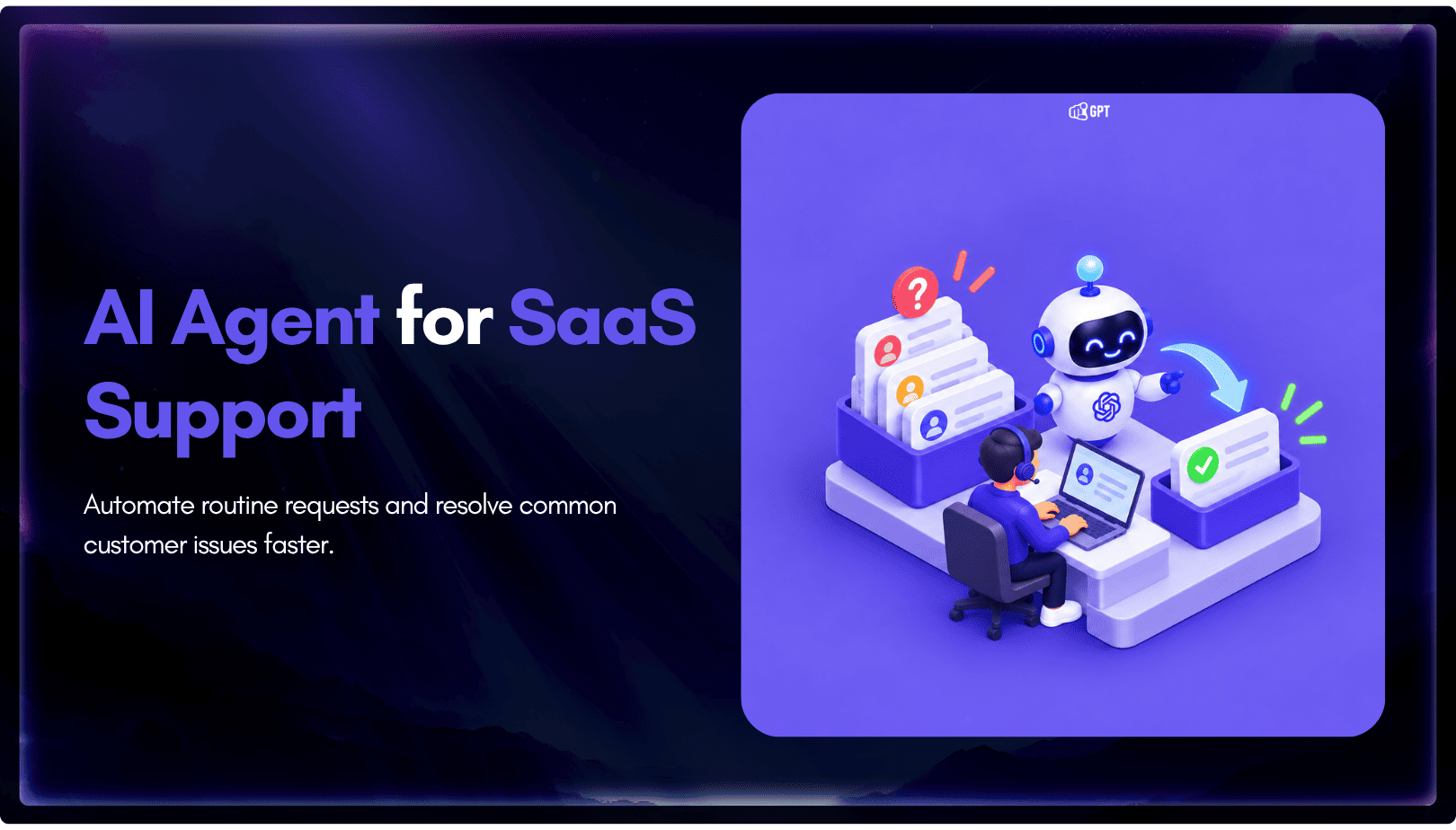
Group last month’s new-account tickets by onboarding stage, fix the docs those tickets expose, and train an AI agent on the fixed docs. Put the widget on the screens where users stall, send account-specific and bug questions to a person, and review the unresolved chats every week. The agent takes the setup questions your docs already answer, and your team keeps the ones that need an account or a fix.
A new account asks different questions from a customer who has used your product for a year. They do not know your terms yet, so they describe the screen in front of them instead of naming the feature. They also ask in the middle of a task, with a half-finished setup open in another tab.
That timing is what makes onboarding tickets costly. A reply that arrives tomorrow reaches someone who has already closed the tab, and a trial that stalls at setup ends before the user sees what the product does. Each ticket also marks the exact place where your product or your docs lost someone. Those marks are the raw material for everything below.
The method starts with those tickets. You sort them by stage, fix what they reveal, and only then put an AI agent in front of new users. Onboarding is a contained place to start, and the same agent can take on the rest of your SaaS support queue later.
Everything later on this page depends on knowing which questions new accounts ask and where they ask them. Export one full month of tickets from accounts in their first weeks. Your team picks the cutoff, such as the first 30 days after signup, and keeps it the same every month so the numbers stay comparable.
Tag each ticket with the stage the user was in when they wrote. Five stages cover the path for a typical SaaS product:
| Stage | Example questions | Usually answered from |
|---|---|---|
| Signup | The verification email never came. Can I sign up with my work domain? | Help center and account pages |
| First setup | Where do I invite my team? Which settings do I need before I start? | Getting started guide |
| Integrations | Where do I find the API key? Why is the sync not showing data? | Integration docs |
| First value | How do I build my first report? Why is my dashboard empty? | Tutorials and videos |
| Billing | When does the trial end? What happens to my data if I downgrade? | Pricing and billing pages |
The example questions are illustrations. Replace them with the wording from your own export, because the customer’s words are what you will test with later. Inside each stage, mark every ticket as repeated or one-off, and flag the ones that needed someone to look at the account or reproduce a bug.
Repeated questions with a written answer are the agent’s work. When set up correctly and maintained, YourGPT agents resolve up to 90% of repeated queries, and the one-off, account-specific and bug tickets stay with people. The gap between answering a question and resolving it shows up clearly in integrations, where a correct answer still leaves the user with a broken sync. Once the tickets sit in stages, the next thing they show you is which docs are missing.
An agent answers from what you train it on, so a question with no written answer gets no good answer. Before you train anything, check each repeated question against your docs and sort it into one of three piles:
Check the first setup and integrations pages first, since those screens tend to change with each release. An agent trained on a page that names a renamed button will repeat the old name with confidence. Outdated sources are one of the common reasons AI agents give wrong answers.
Some tickets point at the product instead of the docs. If ten users could not find the invite button, the fix may belong on the product roadmap. Log those separately and send them to the product team, because no training source will move a button.
Every ticket you fix at the source is one the agent never has to answer. With the docs corrected, you have something worth training on.
Training decides what the agent knows. Add the sources that cover the five stages, and leave out anything written for your own team. YourGPT can train from websites, help centers, text, PDFs and other documents, Notion, Google Drive, Dropbox, Confluence, YouTube, and FAQs.
Match each stage to the place its answers already live:
Leave out internal runbooks, roadmap notes and anything with customer data. If a Confluence space mixes public setup guides with internal escalation notes, train on the public pages only, since the agent can quote anything you give it.
Keep one source per topic and current versions only, and name an owner who retrains each page when it changes. The guide to training an agent on your own data covers source preparation in more depth. A trained agent still needs to sit where new users can reach it.
Onboarding questions come up inside the product after login. The widget belongs in your app as well as on the marketing site. The same agent answers in both places from the same training sources.
The install path depends on how your app is built. Use one of these:
@yourgpt/widget-web-sdk) and initialize it with your widget ID. The SDK can also open the widget or send a message from your own code.Your developers will want to pass the signed-in user’s details to the widget. The Web SDK’s contact:data method takes a name, email and external user ID. Identity verification adds an HMAC hash to that data, so a visitor cannot claim to be a signed-in user. The chat is then tied to a known contact, which helps every handoff later on this page.
With the widget installed, match it to the stages you tagged. Under Widget → Triggers, you have two tools:
The paths below are examples. Use the routes your own app serves.
| Stage | Example page path | Trigger to try |
|---|---|---|
| Signup | /verify-email | Event Trigger after time spent, with a message about the missing email |
| First setup | /onboarding | Ask AI Trigger with the top setup question |
| Integrations | /settings/integrations | Event Trigger on first visit that offers connection help |
| First value | /dashboard | Ask AI Trigger about building the first report |
| Billing | /billing | Ask AI Trigger about trial end and plan changes |
Offering help at the moment of friction is proactive engagement with a narrow job. Keep triggers to the screens your tickets named, because a message on every page teaches users to close it. Triggers cover single screens, and the widget itself needs a starting point for everyone else.
Default Questions are the suggested questions a user sees when they open the widget. Set them in Settings → Widget, on the Customise your widget page, next to Welcome Settings and Follow-up Buttons (widget customization).
Default Questions are set at the widget level. Page-by-page questions belong in the Ask AI Triggers from the previous section, so use Default Questions for the most common question from each stage.
Write them in the customer’s words from your export. If users wrote “where is my API key”, use that phrasing instead of “Locating API credentials”. A good set for a new account might cover:
Pair them with a Welcome Settings message that tells a new user what the agent can help with. A Default Question is only as good as the answer behind it. Open each one yourself and check the reply against the page it came from. Some questions will still need a person, and those need a clear route.
An agent trained on docs cannot see why one customer’s import failed or why their invoice shows the wrong seat count. Those questions need someone with access to the account. Decide which ones go to people before launch, using the flags you set in your ticket export.
Your team chooses the triggers. Examples that often belong with a person:
You can set up human handoff in three ways:
talk to human and can escalate to a person. They do not consume AI credits.Start with the first two, since they take little setup, and move to AI Studio when you need routing by stage or plan. YourGPT is not a native ticket queue, so if your team works from a ticketing system, confirm where a handoff lands before you go live. Billing questions sit right on this line, and the guide to AI billing support covers which ones an agent can close. With the routes in place, the whole setup is ready for real questions.
Test on a staging environment or a single page before every new account sees the widget. Use your export from the first step as the test set, and paste the customer’s wording exactly as they wrote it, typos included. Made-up test prompts are cleaner than real ones, and they hide the gaps that real users will hit.
Pick five or more tickets per stage and check each reply for three things:
Also click every Default Question and every Ask AI Trigger once. A small sample can mislead you, because a stage with three tickets tells you little, so include a second month if one stage looks thin. Fix what fails at the source, retrain, and rerun the same tickets. After launch, the same kind of check becomes a weekly habit.
New accounts will ask things your export did not contain, especially after a release. Those chats end without an answer, and YourGPT keeps a list of them. Open Training → Others → Self-Learning to see the questions the agent could not answer.
Read each question for its cause before you act on it:
Nothing trains until a team member reviews and approves the answer, which is human-in-the-loop design in practice. Smart Learning adds suggested FAQs from previous conversations for your team to review and refine before training.
Put the review on a fixed day and keep a short log of what you trained, fixed or sent on. Each month, rerun the export from the first step and compare the tickets per stage with your baseline. Watch more than the ticket count, since Goodhart’s law applies here: a count chased as a target stops measuring the work. Tickets also fall when users cannot find the Request Human button and give up, so read a sample of chats alongside the count, the same way support quality assurance samples conversations.
Not from training alone. Trained sources give the agent your docs, and the Web SDK’s contact data tells your team who is writing. To answer from live account records, you connect the agent to your systems through Functions, REST APIs or AI Studio. Until you build that connection, route plan and workspace questions to a person with the Request Human button or a Quick Reply that escalates.
Yes, if your signup tickets are about verification emails or domains. Those users have no account yet, so load the widget on the signup and verification pages without contact data. Once the user logs in, pass their details through the Web SDK so your team knows who wrote. Keep the signup stage focused on a single trigger, since the page has one job.
The agent keeps answering from the old pages until you update and retrain them. Add doc updates to your release checklist, then retrain the changed pages the day the release ships. Watch the Self-Learning list that week, because renamed buttons and moved settings show up there first as questions the agent could not answer.
Yes, through the mobile SDKs. YourGPT documents SDKs for mobile apps on Android, iOS, Flutter and React Native, and they connect to the same trained agent. The page-based triggers in this guide are set up for web pages, so on mobile, place the chat entry point on the screens your tickets named instead.
Questions with one fixed answer and predictable wording, such as a request for the status page or a phrase like “talk to a person”. Quick Replies match exact phrases or wildcard patterns, return a set response, and do not consume AI credits. Anything that needs the user’s context, or that users phrase in many ways, belongs with the agent.
Onboarding tickets arrive at the moment a new user is deciding whether your product is worth the effort. Sorting last month’s tickets by stage shows where that moment happens, and fixing the docs behind them gives the agent something accurate to say.
The agent now answers setup questions on the screens where users stall, and account and bug questions reach a person who can open the account. The weekly Self-Learning review keeps the answers in step with each release, and your team’s time goes to the tickets that need it.
Train the agent on your onboarding docs, then add the widget where new accounts stall.

AI agents can now find and buy products for shoppers. See what agentic commerce changes for a Shopify store and which support jobs stay yours.

Build a Halloween shopping assistant for Shopify with YourGPT. Set up product recommendations, stock checks, cart actions and human support before launch.

See what a good customer effort score looks like, how to word and calculate CES on each scale, and which support habits raise customer effort.
Tier 1 support handles first contact. See how Tiers 0 to 3 differ and what changes when an AI agent becomes your first line.
The 12 customer service metrics to track when an AI agent resolves tickets, with a formula for each and a baseline built from your own last month.
Calculate cost per ticket with one formula and a free calculator, then compare it with the cost of a conversation an AI agent resolves.