GPT Chatbot with API Calling | Real-Time Chatbot

Neha
Last updated on July 24, 2026
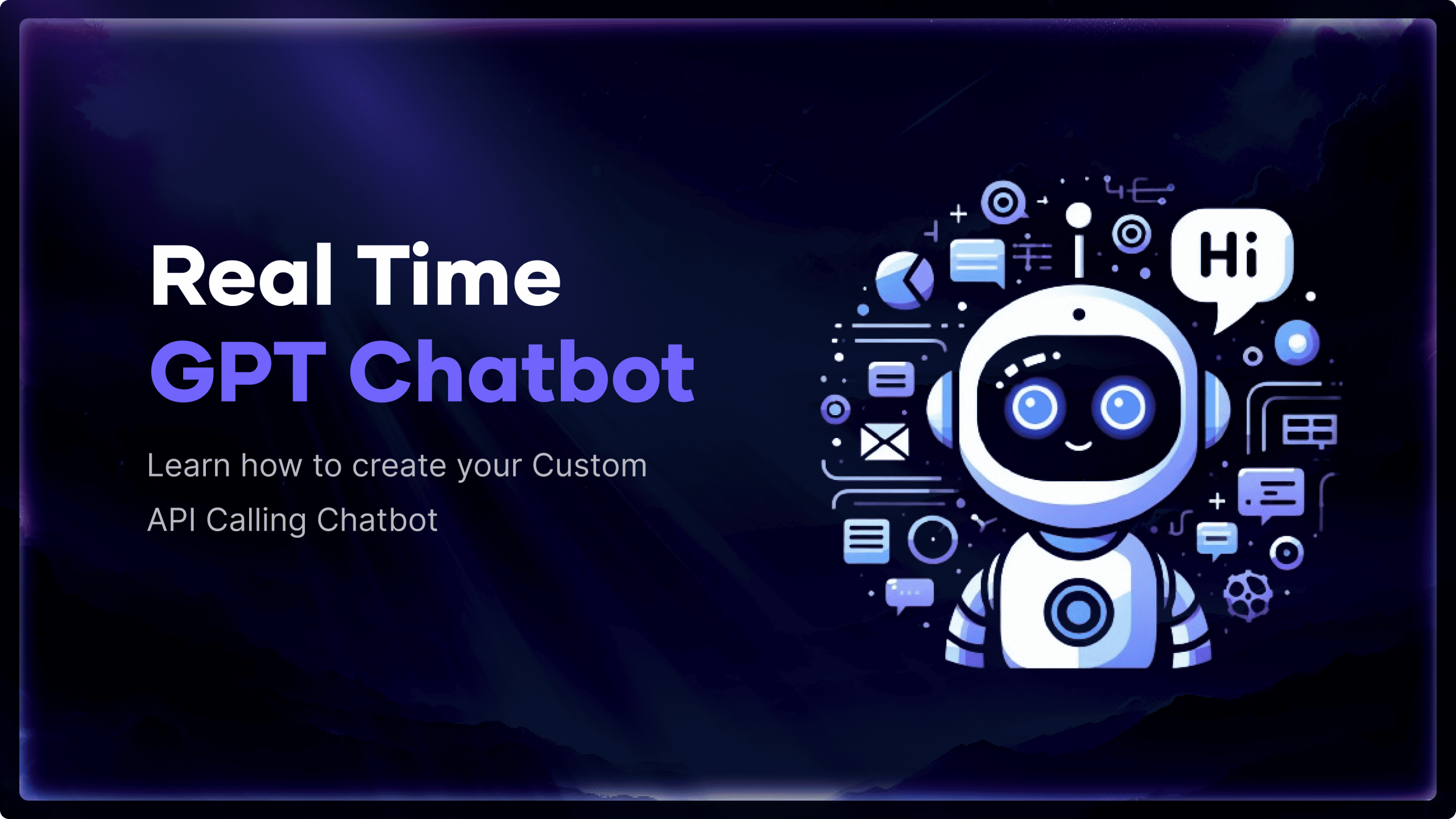
API calling transforms a GPT chatbot from a basic question-answering tool into an interactive assistant that can access real-time data and perform useful actions.
By connecting external APIs, businesses can enable chatbots to track orders, retrieve account information, check inventory, book appointments, schedule services, and provide personalised responses.
The setup involves adding an API Call component, configuring the endpoint, headers, and parameters, testing the response, capturing the returned data, and displaying it within the chatbot conversation.
A chatbot that only answers questions from a knowledge base has limited capabilities. It may explain policies or provide product information, but it cannot check a live order, confirm appointment availability, retrieve account details, or update information in another system.
API calling changes that.
By connecting a GPT chatbot with external applications and databases, the chatbot can access real-time information and perform actions during a conversation. It can check inventory, track deliveries, schedule appointments, create support tickets, update CRM records, and provide responses based on current customer data.
In this guide, you will learn how API integration works in chatbots, why it is useful, and how to configure a custom API call inside your chatbot flow. You will also explore practical use cases across industries such as e-commerce, finance, healthcare, travel, retail, and customer support.
API (Application Programming Interface) integration in chatbots allows the chatbot to access and interact with external data and services. Essentially, it enables the chatbot to extend its capabilities beyond knowledgebase responses, allowing the chatbot to fetch real-time data, interact with other software, and perform dynamic actions based on user requests.
Integrating API calls into your custom GPT chatbot greatly improves its capabilities, allowing your chatbot to provide users with real-time data, making interactions more informative, relevant, and engaging. Whether it is for customer service, data retrieval, or providing personalised content, the ability to call APIs in real time opens up a world of possibilities. Let us see how we can setup.
Follow the steps below to integrate your custom API with GPT Chatbot:
Go to the chatbot dashboard. Here, you will find the Studio section that is your playground for developing and updating chatbot scenarios. In the studio, you can configure your chatbot to execute a range of activities based on user interactions.
Once in the studio, your first step is to create a new scenario. Scenarios are essentially the backbone of your chatbot’s interaction flow. They define how the chatbot should respond to different user intents. Think of them as the script your chatbot follows during its conversations with users.
Capture to feature to store the response in FLOW.response. This stored response can then be used in various parts of your chatbot’s conversation flow.Suggested Reading
These are some use cases of real-time chatbots in different industries, which improve customer engagement, assistance, and operational efficiency. Real-time chatbots find applications in a variety of industries, including:
API integration helps move a GPT chatbot beyond static answers. It allows the chatbot to work with live business data, respond to changing situations, and support users without forcing them to leave the conversation.
The best approach is to begin with a focused task that solves a real customer problem. Order tracking, booking management, product availability, lead creation, and support ticket updates are strong starting points because their results are easy to measure.
Before going live, validate the API output, handle missing or incorrect data, set clear access permissions, and create a fallback path to a human agent. These safeguards help prevent confusing responses and protect sensitive information.
As your chatbot becomes more reliable, you can connect additional tools and workflows gradually. A well-planned API setup can shorten response times, reduce repetitive work, and make every conversation more useful for both customers and internal teams.
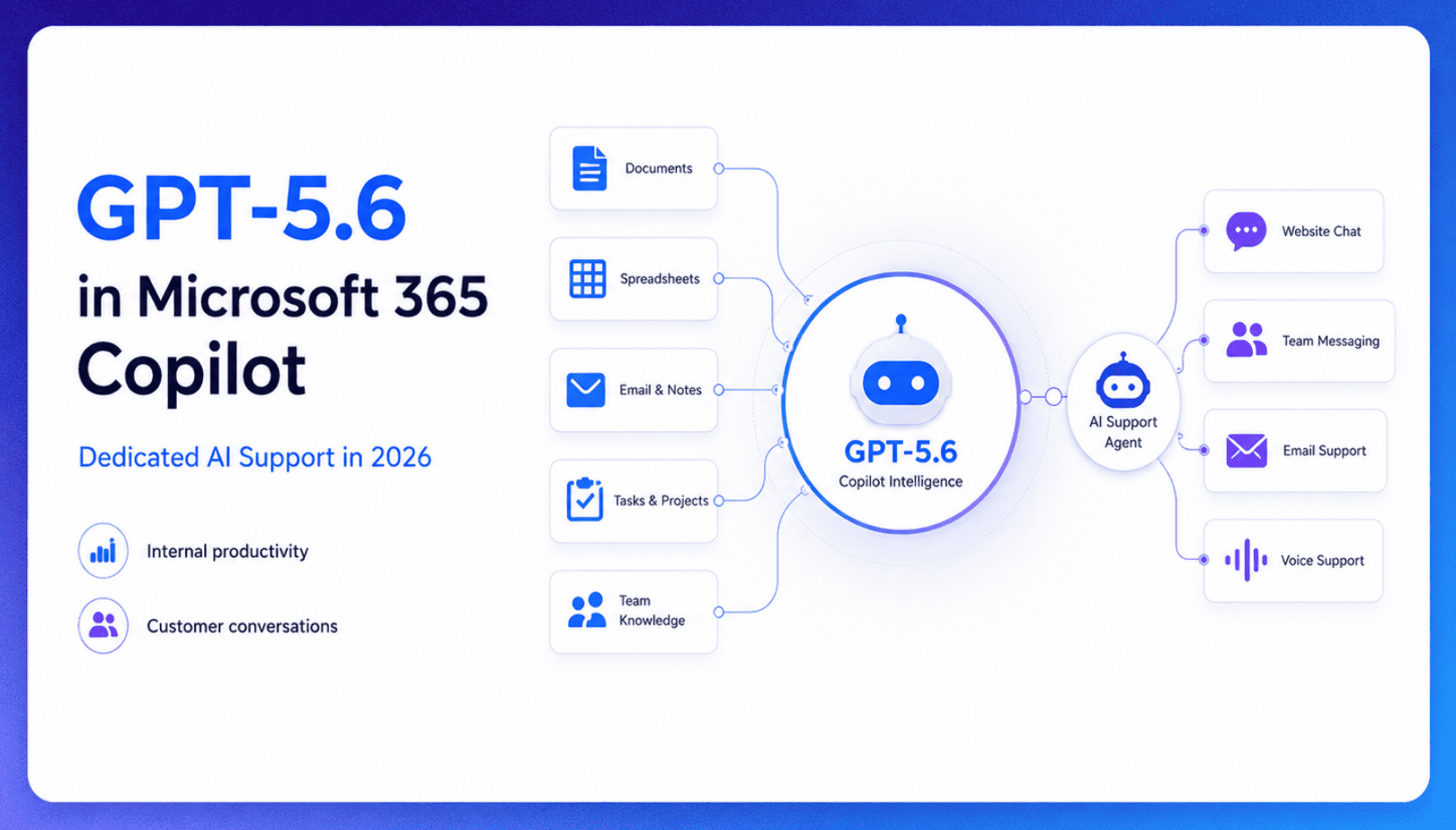
TL;DR Microsoft made GPT-5.6 the preferred model across Word, Excel, PowerPoint, Copilot Chat, and Cowork on July 9, 2026, focusing on internal workplace productivity rather than customer-facing support. Dynamics 365 Service Agent also reached general availability, but it mainly helps human support representatives manage cases within Microsoft’s existing permission structure and requires separate licensing. A […]

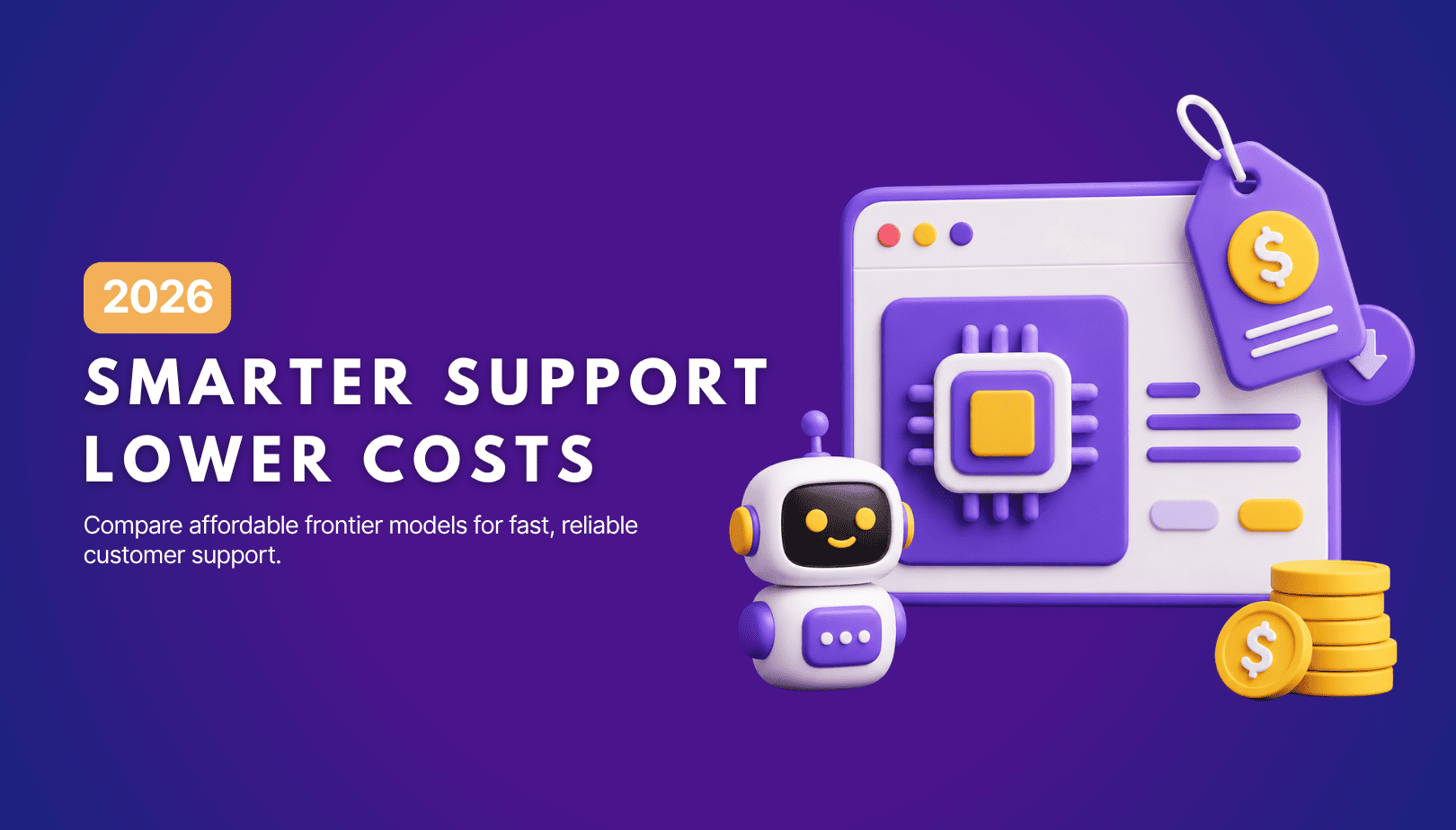
TL;DR Cheap frontier models now compete for the same high-volume support workloads, with DeepSeek V4 remaining the lowest-cost option in this comparison. Kimi K2.6 and GLM-5.2 are open-weight and self-hostable, while Qwen 3.7 Plus is proprietary and available only through an API. Claude Haiku 4.5 is the only model here that its developer explicitly recommends […]
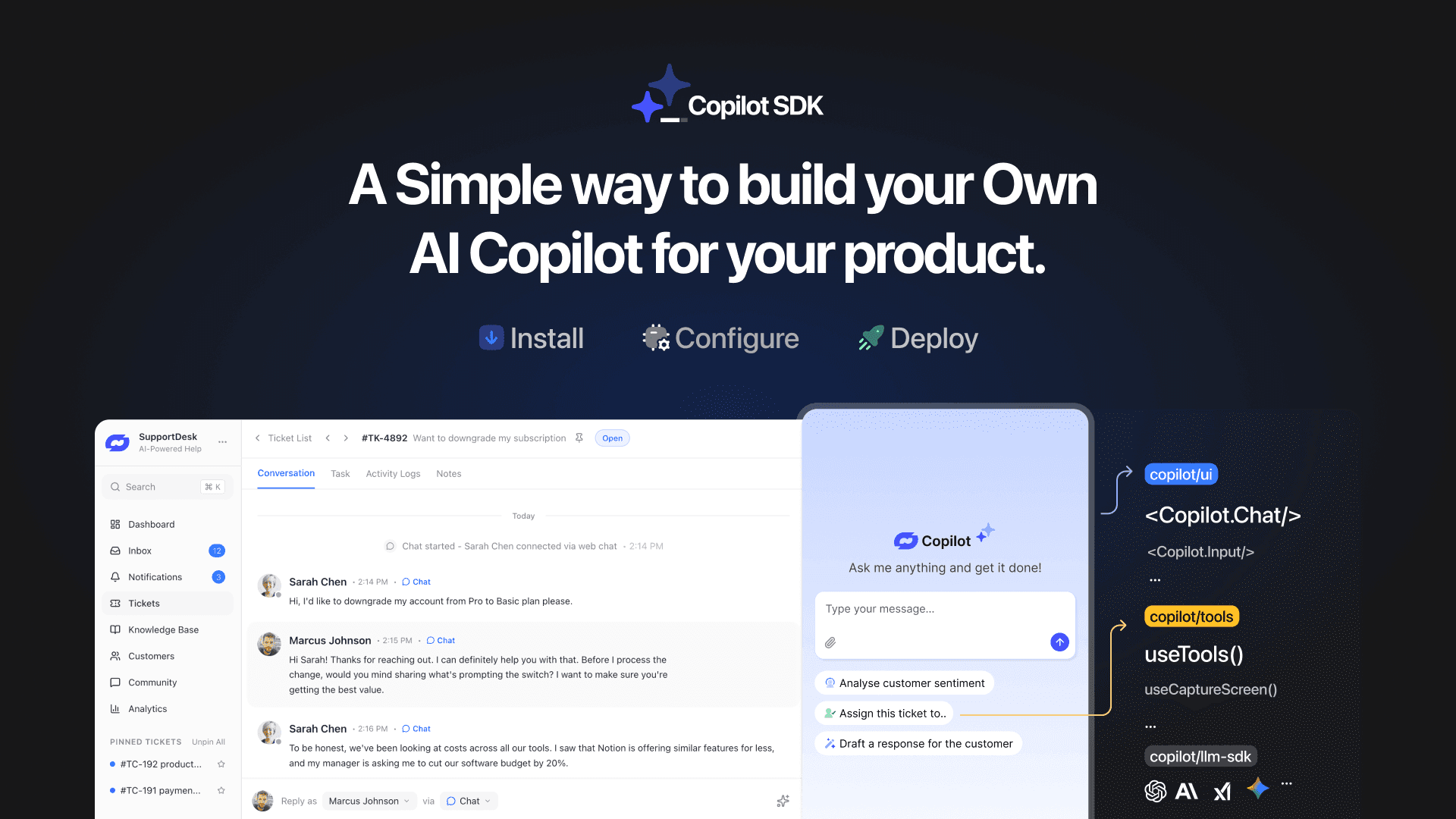
TL;DR YourGPT Copilot SDK is an open-source SDK for building AI agents that understand your application state, user context, and what is happening inside your product. Instead of working like isolated chat widgets, these agents connect directly with your product and can take real actions within existing workflows. This helps teams build contextual AI experiences […]

TL;DR YourGPT 2.0 adds AI Studio for building, testing, and debugging automated workflows. It includes native MCP integration for more than 100 tools, upgraded voice agents, and native SDKs for iOS and Android applications. With shared context across web, WhatsApp, Instagram, Telegram, and mobile, YourGPT turns conversations into real actions across support, sales, and operations. […]

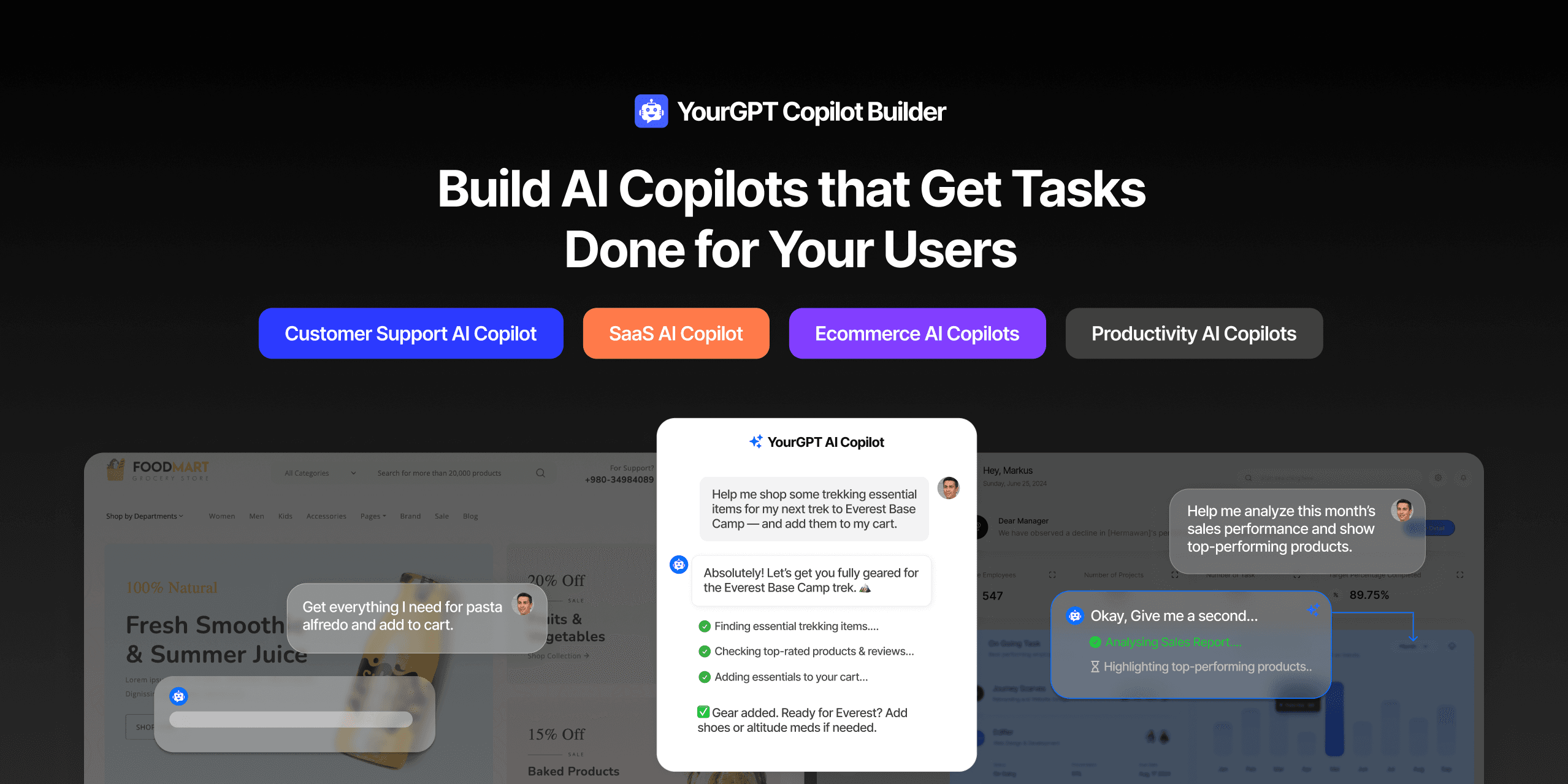
TL;DR Most AI tools provide answers but still leave users to complete the task through search results, settings pages, or checkout flows. AI Copilot Builder closes that gap by executing registered actions directly inside the product instead of only explaining what to do. Search, cart updates, account changes, and multi-step bookings can all happen within […]
TL;DR Building an AI-powered Telegram bot does not require custom development. BotFather provides the Telegram bot token, while a no-code platform like YourGPT handles AI training, free-form conversations, and the Telegram connection. This guide covers the full setup, from creating the bot in BotFather to connecting it with YourGPT and taking it live. Most Telegram […]