How to Build a WooCommerce AI Agent in 10 Minutes (2026)

Rajni
May 11, 2026
Building a WooCommerce AI chatbot takes about 10 minutes and requires no coding. With YourGPT, you can train the chatbot on your store data, connect WooCommerce using REST API and webhooks, answer product and order questions, capture leads, support cart recovery, and extend the same AI assistant across your website, WhatsApp, Instagram, and other messaging channels.
Running a WooCommerce store means answering the same customer questions every day: “Where is my order?”, “How long does shipping take?”, “Can I return this?”, “Which size should I buy?”, and “Is this product available?”
During business hours, your support team may handle these conversations manually. But after hours, during weekends, or during traffic spikes, slow replies can lead to abandoned carts, missed sales, and frustrated customers.
A WooCommerce AI agent helps solve this problem.
Instead of forcing shoppers to search through product pages, FAQs, shipping policies, and contact forms, an AI agent can give instant answers using your own store data. It can recommend products, explain return policies, answer shipping questions, collect leads, support order-related queries, and guide customers toward checkout.
In this blog, you will learn how to build a WooCommerce AI agent using YourGPT and connect it with your WordPress store. You will set up WooCommerce REST API access, configure webhooks, train the AI assistant on your store content, and launch it as a 24/7 shopping assistant.
Before you begin setting up your WooCommerce AI chatbot, make sure you have a few basic things ready. The setup is beginner-friendly, so you do not need coding skills or developer support.
To get started, you will need:
You can also prepare a few extra resources to make your chatbot more accurate and useful:
Once these are ready, you can complete most of the setup directly from your WordPress and YourGPT dashboards. The chatbot can be installed, customised, trained, and launched without editing code.
Your setup begins with choosing the right AI chatbot platform. The platform you select will decide how easily you can install the chatbot, how well it works with WooCommerce, and how useful it becomes for customers.
A normal website chatbot may only answer basic FAQs. A WooCommerce chatbot should go further. It should understand product questions, shopping intent, stock-related queries, order support, and customer journeys.
When comparing AI chatbot platforms for WooCommerce, look for these key features:
Choosing the right platform at the beginning makes the rest of the setup much easier. It also ensures your chatbot can do more than answer basic questions it can capture leads, support customers, and guide visitors toward meaningful actions.
YourGPT is built for businesses that want AI automation without technical complexity. It works with WordPress and WooCommerce, lets you train your chatbot on your own business data, and allows you to deploy the same AI agent across multiple channels.
Here’s what makes it useful for WooCommerce stores:
You’ll spend the first few minutes installing the plugin, creating your YourGPT account, and setting up your AI Agent before connecting WooCommerce.
Adding YourGPT to your WordPress site takes just a couple of minutes. The official plugin manages the entire setup automatically, you do not need to manually configure.
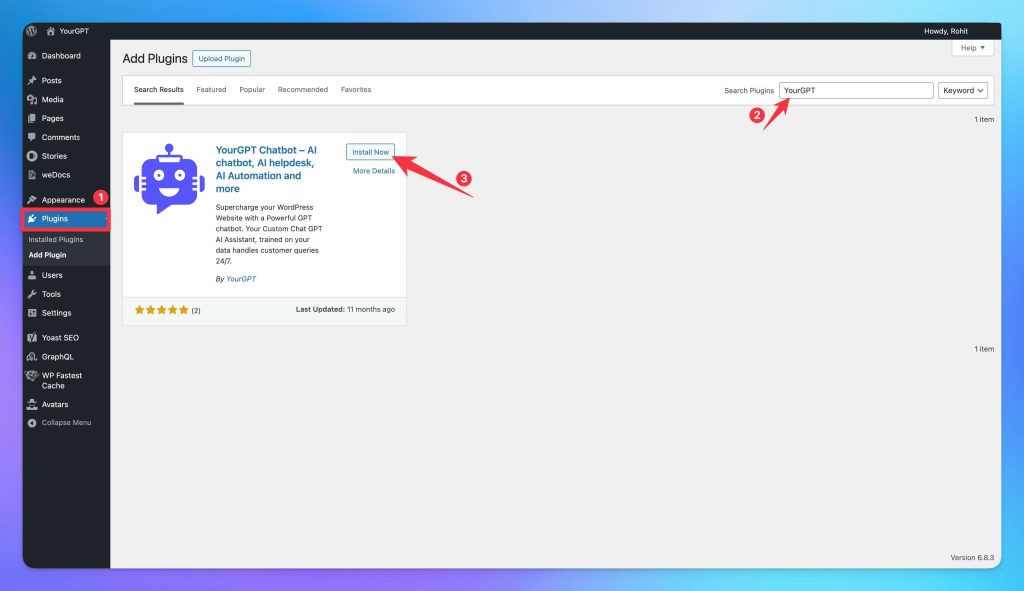
yoursite.com/wp-admin)This is where you will later paste your Widget ID and enable the chatbot on your WooCommerce store.
The plugin setup does not require HTML, CSS, PHP, or manual script installation.
Before you connect the chatbot to your WooCommerce store, you need a YourGPT account.
Once you finish, your dashboard you can create your first AI agent, train it on your store data, customise the widget, connect WooCommerce, and deploy the chatbot to your website.
Here’s where your chatbot truly becomes your store assistant, helping shoppers find products, answer questions, and move smoothly toward checkout.
To get started, open the YourGPT dashboard and click Create New AI Agent.
Give your agent a clear, memorable name that fits your store or feels friendly and approachable. For example:
Next, choose the AI model that fits your store best:
Now, define your chatbot’s tone and purpose. For example:
“You are a helpful AI shopping assistant for [Store Name]. Help visitors find the right products, answer questions about product details, shipping, returns, payments, availability, and order tracking. Keep answers friendly, clear, and concise. Recommend relevant products when helpful, and guide shoppers toward checkout when they are ready to buy.”
Set how you want it to sound based on your brand:
You can always refine these settings later after reviewing real customer conversations. The goal is to make your chatbot feel natural, helpful, and aligned with your store’s personality.
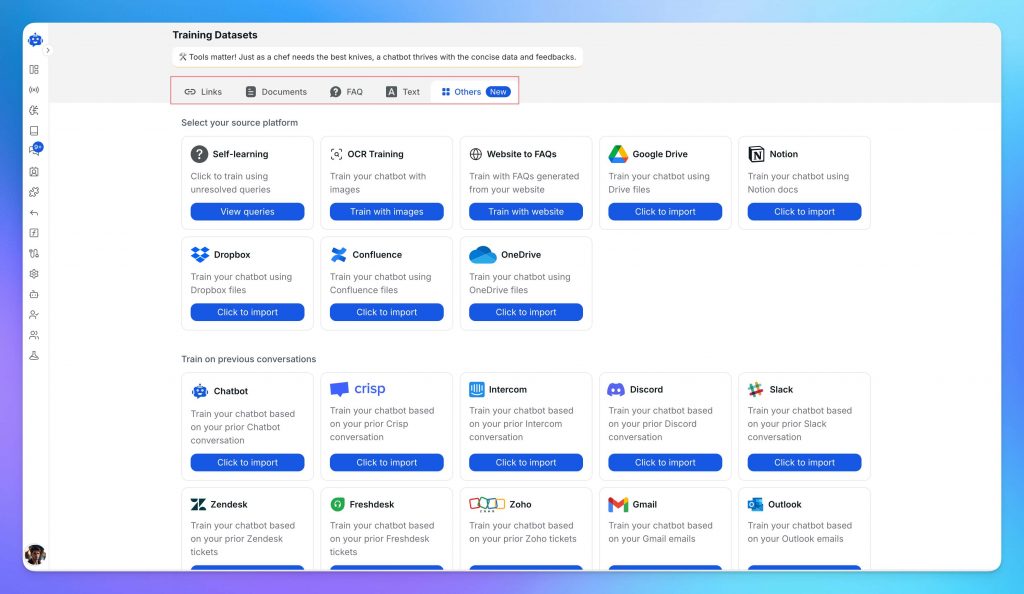
This is where your chatbot starts learning about your business what you sell, how you communicate, and the questions your customers ask most often. The more relevant data you provide, the smarter and more accurate it becomes.
In your YourGPT dashboard, go to Training → Add Data Source → Website.
Enter your WordPress URL, and YourGPT will automatically scan your site to collect and index important content like web pages, blogs, and docs FAQs. The training process depend on your size of the training data usually takes 2–5 minutes.
You can make your chatbot even more capable by adding additional data sources:
Start with essential information pricing, product details, policies, and troubleshooting guides, Training with the FAQs is the Best way. As your chatbot interacts with users, you can add more content over time to improve accuracy.
This is the most important step for a WooCommerce chatbot.
Training the chatbot on your website helps it understand static content. WooCommerce integration helps it work with live store information such as products, orders, customers, prices, and stock updates.
In your YourGPT dashboard, go to:
Integrations → WooCommerce
YourGPT will provide the WooCommerce connection details you need, such as your store URL, REST API credentials, webhook delivery URL, and webhook secret.
Now open your WordPress admin dashboard.
Go to:
WooCommerce → Settings
Then click the Advanced tab.
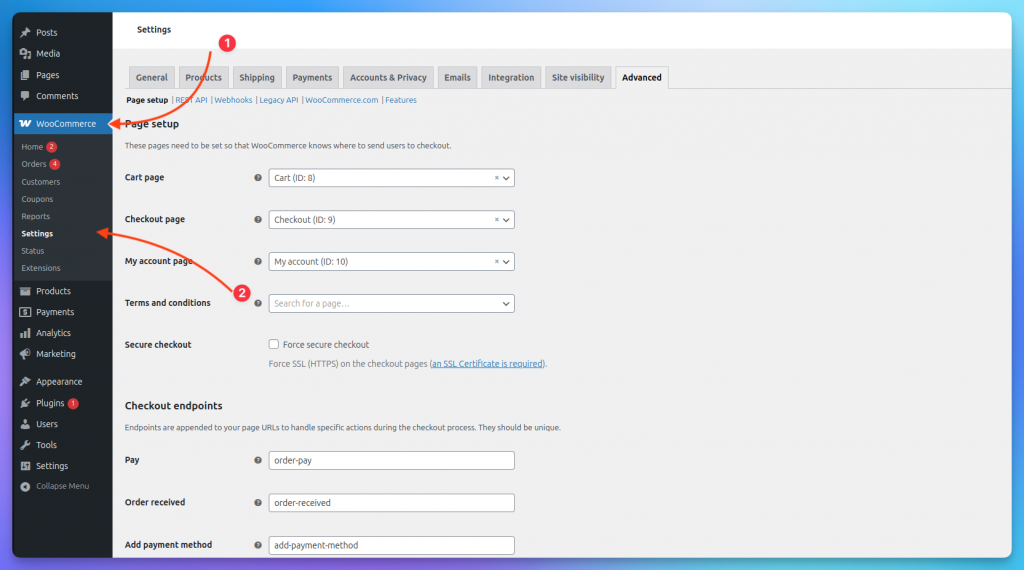
Inside the Advanced section, click:
REST API
Then choose:
Add Key
Give the key a clear name, such as:
YourGPT WooCommerce Integration
Select the user account that has admin permission.
For Permissions, choose the access level recommended inside your YourGPT WooCommerce integration screen.
For lookup-only use cases, Read access may be enough. For advanced workflows that need to update store information, use the permission level recommended by YourGPT.
Click:
Generate API Key
WooCommerce will generate:
Copy both values and paste them into the YourGPT WooCommerce integration screen.
Keep these credentials private.
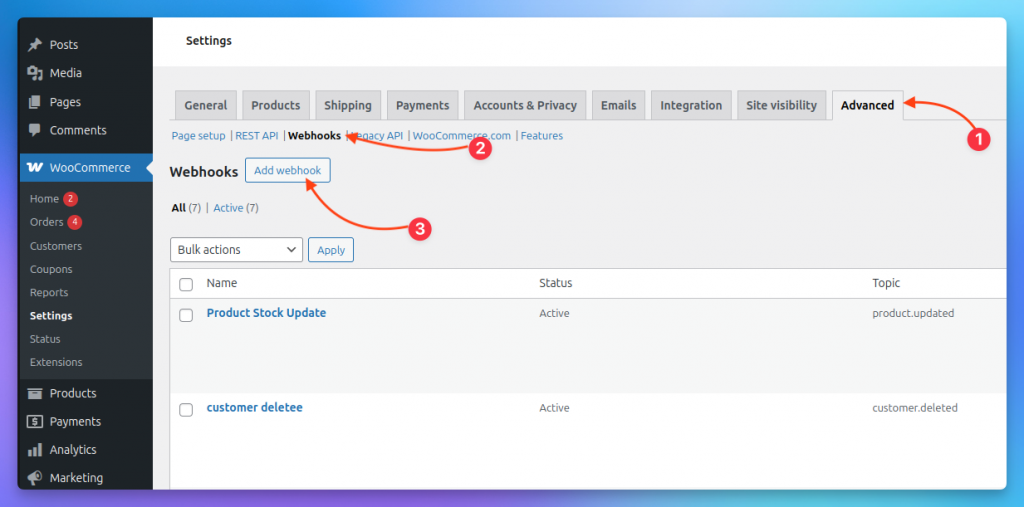
After adding REST API credentials, return to:
WooCommerce → Settings → Advanced
Click:
Webhooks
Then click: Add webhook
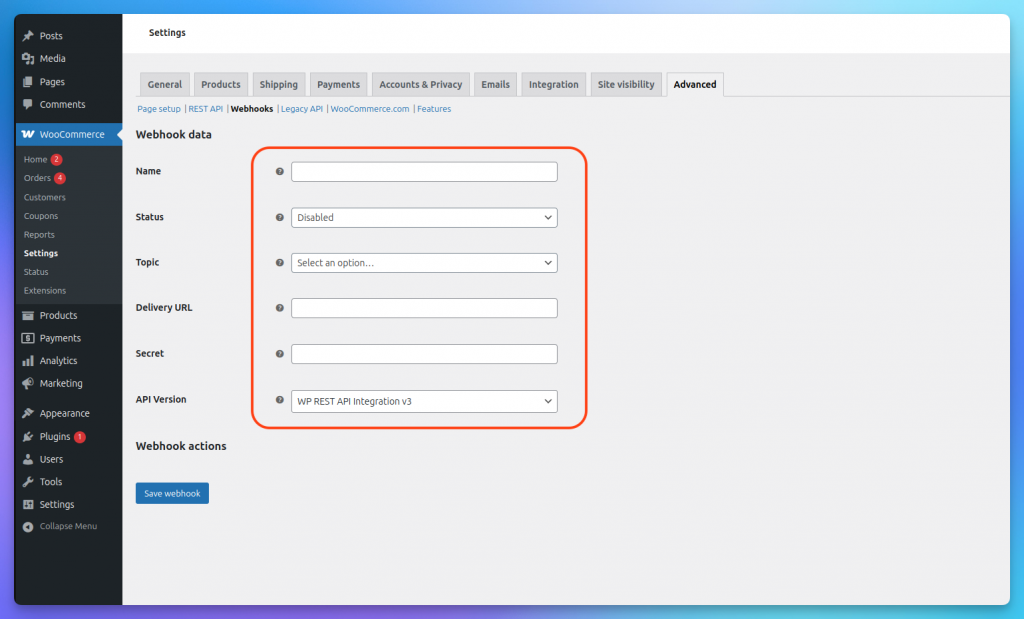
WooCommerce will now show the Webhook data form.
Fill it in using the details provided by YourGPT.
Use these settings:
Name
Choose a clear name, such as:
YourGPT WooCommerce Sync
For specific events, you can use names like:
Status
Change the status from Disabled to:
Active
The webhook will not send data if it stays disabled.
Topic
Choose the WooCommerce event you want to sync with YourGPT.
Common topics include:
Use the topic recommended in your YourGPT WooCommerce integration screen.
Delivery URL
Paste the webhook delivery URL provided by YourGPT.
Secret
Paste the secret key provided by YourGPT, or create a secure secret and use the same value in both WooCommerce and YourGPT.
Keep this secret private. It helps verify that webhook requests are genuine.
API Version
Keep this set to:
WP REST API Integration v3
Then click:
Save Webhook
Once WooCommerce is connected, your chatbot can support more advanced shopping experiences using live store data.
It can help with:
For example, a shopper can ask:
“Is this available in blue?”
“Do you have size M in stock?”
“Where is my order?”
“Can you suggest something similar?”
Instead of giving a generic response, the chatbot can answer using your WooCommerce store data.
Before moving ahead, test one WooCommerce event. For example, update a product, change the stock quantity, or update an order status. Then confirm that the change is received correctly inside YourGPT.
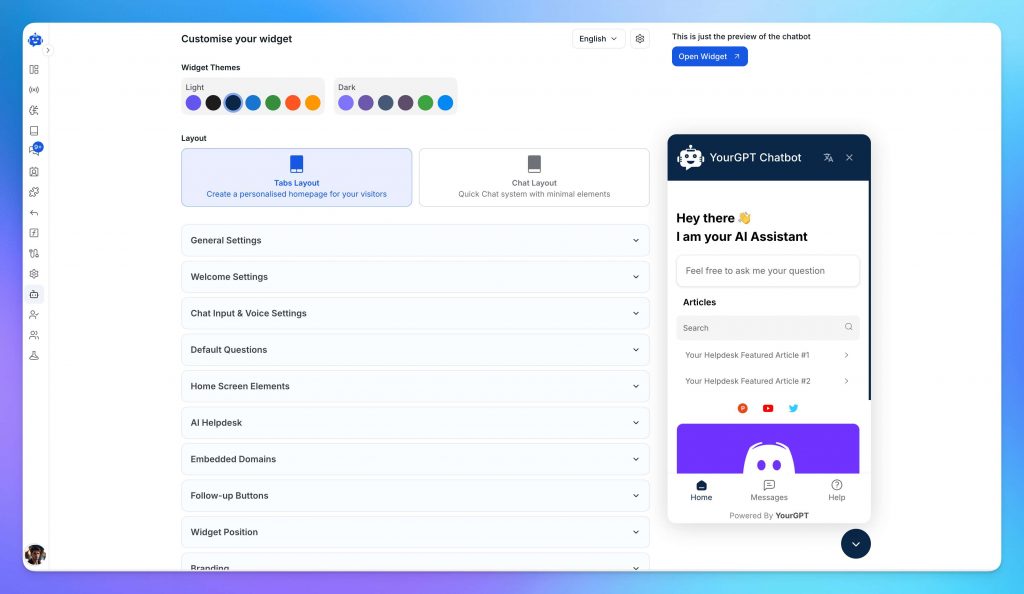
Your chatbot should look like part of your store, not a third-party tool added at the last minute.
Open the Appearance or widget customisation panel in your YourGPT dashboard.
Here, you can customise:
Use a short welcome message that encourages shoppers to ask questions.
Examples:
“Need help finding the right product?”
“Hi! I can help you track orders, check stock, or find products.”
“Looking for something specific? Ask me anything.”
You can also add quick-reply buttons for common actions:
Quick replies reduce friction and make the chatbot easier to use, especially on mobile.
Before publishing, preview the widget on both desktop and mobile.
Not every shopper buys on the first visit. Lead capture helps you collect contact details from interested visitors so you can follow up later.
In your YourGPT dashboard, go to:
General Settings → Leads
Then enable the lead form.
Add only the fields you really need. For most WooCommerce stores, this is enough:
You can also add:
For e-commerce, keep the form short. Long forms can reduce conversions.
For a more advanced setup, use AI Studio to design a complete lead journey. For example, your chatbot can:
This turns your chatbot into both a support tool and a sales assistant.
The final connection takes less than a minute.
Your WooCommerce AI chatbot is now live on your store.
Before announcing it, open your store in an incognito browser tab and test common questions:
“Where is my order?”
“What is your return policy?”
“How long does shipping take?”
“Do you have this product in stock?”
“Can you recommend something under $50?”
“Do you have this in another colour?”
Also test the widget on mobile. Many WooCommerce shoppers browse from phones, so the chatbot should be easy to open, read, and use on smaller screens.
Finally, test one WooCommerce webhook event. Update a product, stock quantity, or order status, then check whether the change syncs correctly.
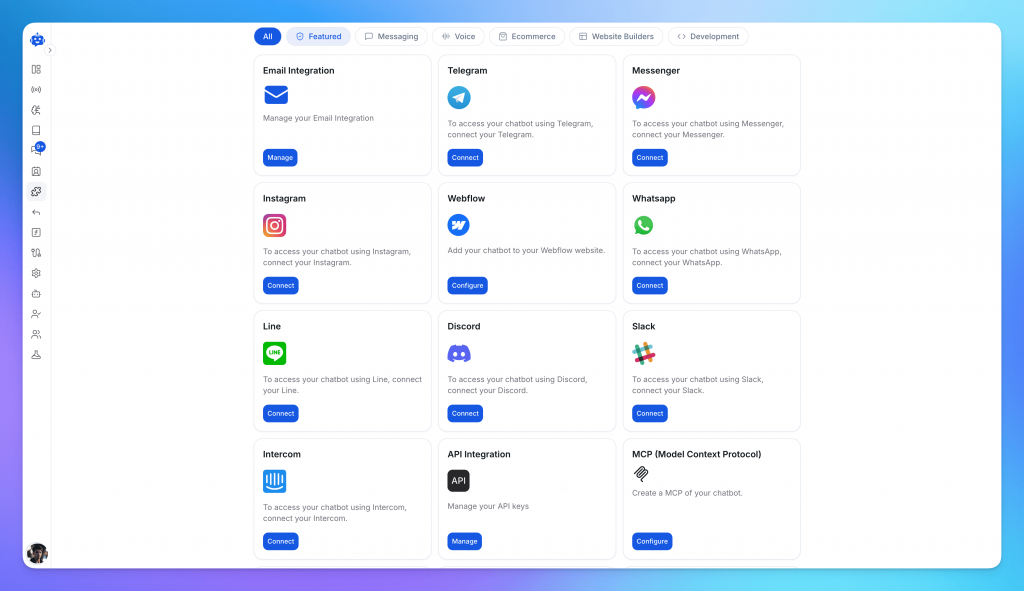
Your chatbot does not have to stay only on your WooCommerce website.
Many shoppers prefer messaging channels such as WhatsApp, Instagram, Messenger, or Telegram. With YourGPT, the same AI agent can be deployed across multiple channels from the same dashboard.
You can connect it to:
The benefit is consistency.
A shopper can ask a question on your website, Instagram, or WhatsApp, and the same AI agent can respond using the same store knowledge.
This is especially useful for WooCommerce stores that sell through social channels or receive product questions through Instagram DMs.
Most WooCommerce AI chatbot setups work smoothly. But if something does not work as expected, use the checks below to fix common issues quickly.
First, check that the YourGPT plugin is installed and activated in WordPress.
Go to:
WordPress Dashboard → YourGPT
Check that:
If the widget still does not appear:
Caching, delayed scripts, and JavaScript conflicts are common reasons the widget does not load immediately.
Go to:
YourGPT → Integrations → WooCommerce
Check that the WooCommerce connection is active.
Then confirm that:
If you recently added or edited products, run a manual sync if available and test again after a few minutes.
Go to:
WooCommerce → Settings → Advanced → REST API
Check that:
If the connection still fails, regenerate the API keys and reconnect WooCommerce in YourGPT.
Go to:
WooCommerce → Settings → Advanced → Webhooks
Open the webhook and check that:
To test it, update a product, change stock quantity, or update an order status.
You can also check webhook logs under:
WooCommerce → Status → Logs
If the webhook shows repeated failures, check the delivery URL, secret, firewall, or security plugin settings.
Choose the webhook topic based on what you want the chatbot to track.
Use product topics for:
Use order topics for:
Use customer topics for:
Use separate webhooks if you want to track multiple WooCommerce events.
Wrong answers usually happen when the chatbot has missing, outdated, or conflicting information.
Check and update:
Also update the chatbot whenever you change prices, promotions, stock, shipping rules, or return policies.
Test the chatbot with real customer questions before going live.
A slow chatbot is often caused by overall website performance issues.
Check for:
Compress images, remove unused plugins, and test your site speed after each change.
If the chatbot cannot answer order-related questions, check that:
For safety, the chatbot should verify the customer before showing order details.
A good flow is:
If the issue continues, contact support with the details needed to investigate the problem faster.
Include:
You can get help from:
Pro Tip: Do not share API keys, webhook secrets, passwords, or private customer data when asking for help.
Your chatbot is live. The next step is to make it more useful for real shoppers.
Do not try to automate everything on day one. Start with the questions and moments that affect sales, support workload, and customer trust.
Your chatbot conversations show what shoppers ask before they buy.
Check them every week and look for repeated questions like:
If the same question appears often, add a clear answer to your knowledge base. This is one of the easiest ways to improve chatbot accuracy.
WooCommerce stores change often. Your chatbot should be updated whenever your store changes.
Update the knowledge base when you change:
Fresh information helps the chatbot avoid wrong or outdated answers.
A good chatbot should not only answer questions. It should help shoppers choose the right product.
Train it with useful product details such as:
For example, instead of giving a generic answer like “Here are our popular products,” the chatbot should ask what the customer needs, then suggest products based on size, budget, use case, or compatibility.
Also make sure the chatbot does not recommend out-of-stock, hidden, or discontinued products.
Once the basic chatbot is working well, use YourGPT workflows to create guided chat journeys.
Start with simple workflows such as:
Product finder
Ask the customer what they are looking for, then recommend suitable products.
Cart support
Help customers who have doubts about shipping, returns, sizing, or payment before checkout.
Order support
Ask for order details, verify the customer, and guide them to order status or human support.
Human handoff
Send complex questions, refund issues, complaints, or payment problems to your team.
Keep workflows short. A chatbot should make shopping easier, not force customers through long forms.
Review chatbot performance regularly so you know what to improve.
Track:
Use these insights to improve the chatbot every week. If many users ask the same question, add it to your knowledge base. If many users need human handoff, improve the chatbot instructions or create a better workflow for that issue.
No. You can set up a WooCommerce AI chatbot using the YourGPT WordPress plugin and dashboard without writing code. You only need to install the plugin, create your AI agent, connect your store, and enable the chatbot on your website.
A basic WooCommerce AI chatbot can be set up in around 10 minutes. Larger stores may take more time if you want to upload extra product documents, configure multiple webhooks, or build advanced automation workflows.
Yes. Once trained on your store data, the chatbot can answer product-related questions, explain features, recommend items, compare products, and guide shoppers toward the right purchase.
Yes. If your WooCommerce product data and integration are configured correctly, the chatbot can help with variant-related questions such as size, colour, style, availability, and similar product options.
Yes. With the right WooCommerce connection and order-related setup, the chatbot can help customers with order status and tracking-related questions. For privacy, it should ask for safe verification details before sharing order information.
Yes. The chatbot can support cart recovery workflows when the visitor has shared contact details or is reachable through a connected channel such as email, WhatsApp, Messenger, or Instagram.
Webhooks are recommended if you want YourGPT to receive live WooCommerce events such as product updates, order changes, customer events, or stock-related updates. They help keep your chatbot connected to important store activity.
Choose the webhook topic based on what you want to sync. Use Product updated for product and stock changes, Order created for new orders, Order updated for order status workflows, and Customer created for new customer events.
The chatbot widget is designed to load without blocking the main website experience. If your store feels slow, check image size, hosting performance, theme scripts, caching plugins, and plugin conflicts.
Yes. You can deploy the same AI agent across your WooCommerce website, WhatsApp, Instagram, Messenger, Telegram, email, and other supported channels, so shoppers get consistent answers wherever they contact you.
Building a WooCommerce AI chatbot does not have to be complicated. Once you install the plugin, connect your store, add your product and policy information, and test a few common questions, you can launch a working shopping assistant with YourGPT.
The real value comes after launch. Review what shoppers ask, update your knowledge base, improve product recommendations, and refine support flows based on real conversations. This helps your chatbot become more accurate, useful, and aligned with how customers actually shop.
Start simple, then improve it every week. A well-trained WooCommerce AI chatbot can reduce repetitive support work, answer questions outside business hours, guide shoppers toward the right products, and create a smoother buying experience across your store.
Help customers instantly, answer product questions, recommend items, capture leads, and recover more sales with AI chat built for WooCommerce stores. No coding needed.
7-day free trial · No credit card required
TL;DR AI agents are becoming part of everyday business operations across customer support, sales, onboarding, and internal workflows. In customer support, they are commonly used to answer questions, automate billing support, track orders, handle repetitive requests, collect information, route conversations, and assist human agents with context and actions. Some platforms focus mainly on conversational replies, […]
TL;DR YourGPT and Asana work best together when conversations can turn into structured tasks without manual handoff between support, ops, or project teams. You can connect them through Asana MCP, YourGPT AI Studio, or viaSocket, depending on whether you need agentic control, custom workflow logic, or a fast no-code setup. Start simple: use one clear […]
TL;DR Dental clinics often lose patients not due to treatment quality but because of slow or missed responses across calls, chats, and after-hours enquiries. AI agents help by responding instantly, collecting structured patient details, applying booking rules, and routing requests before they reach the front desk. Clinics that define clear workflows, set boundaries around clinical […]

TL;DR The best Shopify AI support agent is not defined by demos, but by how it performs under real customer scenarios with accurate, source-backed answers and clear boundaries. Reliable systems depend on strong knowledge grounding, retrieval of live store data, controlled permissions, and structured escalation, not just model quality or response fluency. Platforms like YourGPT […]
TL;DR AI improves speed, but real ROI appears when workflows no longer depend on a human queue and can be completed end to end. Autonomous agents shift cost structure by removing routine work from human flow, reducing cost per case, improving response time, and scaling capacity without linear hiring. Platforms like YourGPT help operationalize this […]
AI becomes far more useful when it can do more than answer questions. That is where autonomous AI agents stand apart. Instead of stopping at conversation, they can understand a goal, decide what needs to happen next, take action, and improve over time through real interactions. They are not fully independent. You still define the […]